
Prompt ownership means the set of platform controls that decide who can view, edit, promote, delete, or transfer a saved prompt. It determines whether a teammate can tweak a production prompt by accident or whether that action requires an owner's approval. Get this wrong and a single careless edit can break a workflow that dozens of people rely on.
TL;DR:
- Prompts should default to private until tested, with team or public access granted only after thorough validation.
- Using aliases like staging and production helps teams perform safe, deterministic rollbacks by simply reassigning version pointers.
- Only owners and admins should have delete rights, and a soft-delete window helps recover prompts accidentally removed.
- Cloud sync allows seamless updates across devices, with offline edits queuing and conflicts resolved based on the most recent save.
- Role-based permissions and audit logs ensure accountability, with webhooks and APIs supporting automated testing and version management workflows.
Table of Contents
- Access modes and role-based permissions
- How sharing and approval workflows actually work
- Cloud sync and working across devices
- Version history, aliases, and rollback
- Transferring, deleting, and recovering prompts safely
- Audit trails, webhooks, and API-driven automation
- Practical best practices for teams and power users
- Why treating prompts like deployable code changes team behavior
- The PromptChief option for ownership, sync, and versioning
- FAQ
- Sources
Access modes and role-based permissions
Most prompt managers offer three visibility levels. Private ("only me") keeps a prompt hidden from everyone else, useful for drafts or personal experiments. Team (workspace) makes a prompt visible to colleagues who share that workspace, often with edit rights open to the group. Public pushes a prompt into a shared or community library, where anyone with access can view or copy it, as described in platforms that separate prompt libraries into personal, team-shared, and public repositories.
Ownership sits on top of visibility. An owner is the person (or role) with rights to tag, promote, or delete a prompt; a workspace-authorized user might edit a draft but never touch what is live. Common permission names map directly to these actions:
- prompts:tag lets a user attach a version label or alias.
- prompts:edit allows changes to the prompt's text or variables.
- prompts:delete removes a prompt, often restricted to owners only.
- prompts:promote moves a version from staging into production.
Role structures typically break down into Admin (full control, including ownership transfer), Creator (can edit and submit changes but not promote), and Viewer (read-only access). Our prompt management software overview covers how these roles interact with saved libraries in more detail.
How sharing and approval workflows actually work
Sharing a prompt safely usually follows a short sequence rather than a single click:
- A creator shares a draft to the team workspace.
- A teammate submits an edit request instead of overwriting the original.
- An owner reviews and approves (or rejects) the proposed change.
- The approved version publishes to the shared library, replacing or extending the prior one.
Owners-only mode exists to protect production use. When that mode is active, only designated owners can approve edits or push a new version live, which keeps a well-meaning but unapproved change from reaching a prompt that customer-facing automation depends on. According to LangChain's documentation on managing prompts, owners-only settings and commit tags are common patterns for restricting who can promote commits into production environments.
Public libraries make sense for templates meant to be copied and reused broadly, like onboarding scripts or general writing aids. Anything tied to a live product, a client deliverable, or sensitive data belongs in a private or team-scoped library instead. Our guide on how teams save and share AI prompts walks through these patterns with more examples.
Pro Tip: Default new prompts to private until they're tested; widen visibility only after a trial run.
Cloud sync and working across devices
A prompt manager with cloud sync keeps one authoritative copy of every prompt, updated in near real time across your devices. Open your laptop, phone, or a browser extension, and the same library should appear without manual exporting or copy-pasting.
A few practical details matter once multiple devices are involved:
- Edits made offline queue locally and sync once a connection returns.
- Conflicting edits from two devices typically trigger a merge prompt or keep the most recent save, depending on the platform.
- Browser extensions and API integrations inherit the same visibility and ownership rules as the web app, so a private prompt stays private even when injected through an extension.
This matters most for anyone switching between a desktop workspace and a phone mid-project, where losing track of which version is current creates real friction.
Version history, aliases, and rollback
Treating prompts like deployable code, rather than disposable text snippets, is the core idea behind modern prompt version control. Each saved edit becomes an immutable snapshot rather than overwriting what came before.
- Snapshots preserve every past version so nothing is lost to an accidental edit.
- Aliases like "production" or "staging" point to a specific version number instead of always following whatever was saved last.
- Commit tags label meaningful checkpoints, similar to tagging a release in code.
According to Databricks' documentation on prompt registries, using aliases rather than a moving "latest" pointer reduces the risk of accidentally deploying untested prompt edits and makes rollbacks deterministic. A prompt registry built around immutable snapshots and aliasing lets teams perform one-click rollbacks, because the alias simply gets repointed to an earlier, known-good version instead of requiring a manual rewrite.
A typical promotion flow looks like this: a draft gets refined, moves to a "staging" alias for testing against real inputs, and only an owner can repoint "production" to that staging version once it checks out. If a promoted prompt starts producing bad outputs, rolling back means repointing the production alias to the previous version, not rewriting anything from memory. Our prompt version control promotion workflow breaks this five-step process down further.

Transferring, deleting, and recovering prompts safely
People leave teams, roles change, and prompts occasionally get deleted by mistake. A few safeguards prevent that from becoming a bigger problem.
- Ownership transfer reassigns a prompt to a new owner, either voluntarily or through an admin takeover when someone leaves.
- Soft-delete windows hold deleted prompts in a recoverable state for a set period before permanent removal.
- Confirmation dialogs and owner-only delete locks stop a single misclick from wiping a prompt that other people depend on.
Build a short offboarding checklist: reassign every prompt the departing person owned, archive anything no longer in active use, and confirm no shared automation still points to a prompt that is about to lose its owner.
Audit trails, webhooks, and API-driven automation
Audit logs record who edited, promoted, or deleted a prompt and when, which matters the moment something breaks and a team needs to trace the change back to its source. Collaborative prompt platforms commonly pair role-based access control with version history and audit logging for exactly this reason.
- Audit logs trace ownership changes, promotions, and deletions.
- Webhooks can notify a CI pipeline or trigger a QA check automatically whenever a prompt updates.
- APIs support scripted promotions and programmatic permission checks, useful for teams running dozens of prompts through automated pipelines.
Building webhook-driven workflows reliably means planning for retries and duplicate events, a point covered well in guidance on building idempotent webhook systems.
Pro Tip: Wire a webhook to your QA suite so every promoted prompt gets tested automatically before it reaches production.
Practical best practices for teams and power users
A handful of small habits prevent most ownership headaches before they start.
- Name and tag prompts consistently, so "customer-support-v3" never gets confused with an unrelated draft.
- Require a minimal promotion checklist, test inputs, a QA pass, and a commit tag, before anything moves to production.
- Assign exactly one accountable owner per critical prompt, not a whole team by default.
- Limit delete rights to owners and admins only.
- Run a periodic audit of who owns what, and archive prompts nobody has touched in months.
| Practice | Why it matters |
|---|---|
| Consistent naming and tagging | Prevents confusion between draft and live versions |
| Owner per critical prompt | Creates clear accountability for changes |
| Promotion checklist before production | Catches errors before they reach live use |
| Periodic ownership audit | Surfaces orphaned or stale prompts |
Our piece on building a prompt library structure covers naming and tagging conventions in more depth for teams setting this up for the first time.
Why treating prompts like deployable code changes team behavior
Staging and production aliases exist because prompts behave like code: a small wording change can shift output quality across an entire workflow. Immutable versions and deterministic rollbacks give teams the same safety net engineers expect from software releases, clearer accountability, fewer surprise regressions, and a paper trail when something needs fixing fast.
— John
The PromptChief option for ownership, sync, and versioning
If you want these controls without building a governance process from scratch, PromptChief gives you cloud-synced prompt libraries with owners-only behaviors, version history, and team workspace controls built in.
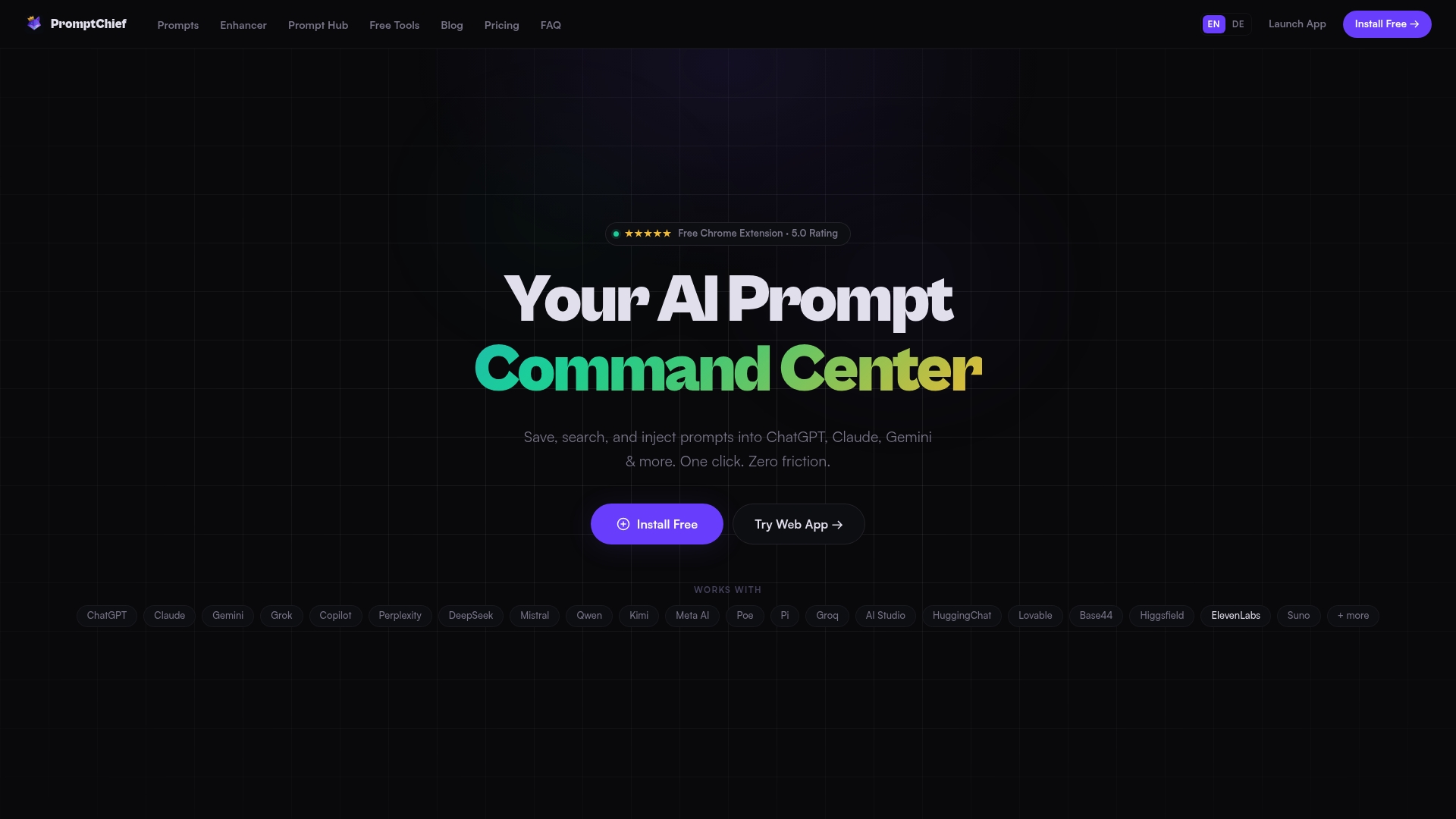
- Search and inject saved prompts across 27+ AI platforms, including ChatGPT, Claude, and Gemini, without retyping or losing track of versions.
- Keep sensitive or production prompts private, team-scoped, or shared through our community Hub, depending on what each one needs.
- Use team workspace features to assign ownership, manage roles, and keep everyone working from the same synced library.
Our Plus plan runs $8.11 per month (or 69.90 € per year), and Pro runs $17.39 per month (or 149.88 € per year), with Teams priced per seat for groups that need shared workspaces. Check our pricing page or start with the free plan to see how the controls described above work in practice.
FAQ
What does prompt ownership mean in a prompt manager?
Prompt ownership means the specific rights, such as editing, promoting, deleting, and transferring, that a platform assigns to a user over a saved prompt. It determines who can change a prompt that others depend on and who is accountable when something breaks.
Who should be allowed to delete a shared prompt?
In most setups, only the designated owner or an admin should hold delete rights, often behind a confirmation step or a soft-delete window that allows recovery. Opening delete access to an entire team increases the risk of accidental loss.
How does version history help with rollbacks?
Version history keeps every past edit as an immutable snapshot, and aliases like "production" let a team repoint to an earlier version instantly instead of rewriting a prompt from memory. This makes rollbacks a deterministic, one-step action rather than a guessing game, as described in Databricks' prompt registry documentation.
What happens to a prompt's ownership when someone leaves the team?
An admin typically reassigns ownership to another team member as part of offboarding, and any prompt left without an owner should be flagged for review rather than left active. A short offboarding checklist prevents orphaned prompts from lingering unmanaged.
Can PromptChief sync prompts across multiple devices?
Yes, PromptChief uses cloud sync so saved prompts stay current across devices through the web app and browser extension. This keeps one library in sync rather than requiring manual copying between a laptop and phone.
Sources
- Prompt Registry — Databricks (MLflow) Documentation
- Manage prompts — LangChain (LangSmith)
- Prompts & Library — Upmeet Docs
- Pythagora-io/prompthub (README and docs)