
Organize prompts first by project, then layer on tags and templates for cross-cutting reuse. This project-first structure makes prompts faster to find, easier to hand off to teammates, and simpler to reuse across similar work. Tools like PromptChief can hold this structure in the cloud, but the same system works in a plain folder or a Notion database. The quick-start checklist below gets you set up in under an hour.
TL;DR:
- Organizing prompts by project rather than generic categories aligns with natural search habits and improves handoff clarity for team members.
- Setting up a prompt library takes about an hour, involving a single inbox, weekly triage, controlled naming, tagging, and template creation, with storage choices tailored to scale.
- A hybrid system combining project folders with a few controlled tags offers the most flexible and manageable approach for teams managing multiple projects or reuse scenarios.
- Consistent filename patterns and metadata fields such as project, model, and use case significantly enhance prompt discoverability as the library grows.
- Using dedicated prompt management tools like PromptChief reduces manual upkeep, provides cloud syncing, fuzzy search, and shared workspaces, suitable for multi-project and team environments.
Table of Contents
- Why organizing by project works better than generic categories
- Step-by-step setup: capture, name, tag, template, store
- Folder vs tags vs hybrid: pick the simplest system that fits your work
- Naming conventions and metadata to make prompts discoverable
- Daily workflows: inbox, bookmarks, and archiving that keep a library usable
- Collaboration, versioning, and sharing for teams
- Tools and formats: notes apps, Notion, and dedicated prompt managers
- Turning successful prompts into playbooks and templates
- What changes when your prompts have a real home
- PromptChief: how it helps implement the project-first library
- Sources
- FAQ
Why organizing by project works better than generic categories
Most people start their prompt library with abstract buckets like "writing," "coding," or "marketing." That works for a week, then falls apart, because you rarely think in those terms when you actually need a prompt. You think in terms of the project you are working on: the client pitch, the Q3 launch, the onboarding rewrite.
Project-first organization matches how you already search for things. When you open your prompt manager mid-task, you are not browsing categories, you are looking for "the outline prompt I used for the Meridian account." A project folder gets you there in one click.
This structure also makes handoff easier. When a teammate takes over a project, a single project folder with its prompts, templates, and notes hands over cleanly, without them digging through a shared "misc" pile. Project-management guidance backs this up directly: UMD's project management guidance recommends mirroring your natural work domain, organizing by project phase, department, or client rather than relying only on generic topic categories. That alignment between structure and actual work is what keeps a library alive past the first month.

Step-by-step setup: capture, name, tag, template, store
Building a working library does not take a weekend. It takes an hour if you follow a fixed sequence instead of trying to design the perfect system up front.
- Set up a single inbox. Every new prompt you write or copy goes into one holding folder first, no exceptions, no side notes app.
- Schedule a weekly triage. Fifteen minutes once a week to sort the inbox into project folders keeps the pile from becoming a second job.
- Adopt a naming pattern. Include the project, the role the prompt plays, the task, and the target model, so the filename alone tells you what it does.
- Add controlled tags. Stick to a short set such as model, frequency, use_case, and tested, so filters stay reliable instead of drifting into noise.
- Convert repeatable prompts into templates. Anything you have reused three times should become a template with variables in place of hardcoded names, dates, or product details.
- Choose a storage option and back it up. A plain text file, a Notion database, or a dedicated manager all work, as long as the choice is deliberate and not accidental.
This sequence mirrors what practical guides on the topic recommend. Qrush's system for organizing ChatGPT prompts points to the same starter scheme: an inbox, a daily list, an archive, and dedicated project folders, along with the habit of clearing the inbox weekly so it never becomes a backlog. And on the naming and tagging side, SurePrompts' guide to building a prompt library recommends task-based primary organization with a controlled vocabulary of three to five tags per prompt, which keeps filters trustworthy instead of a mess of one-off labels invented in the moment.
The order matters. Capture first, sort second, template last. Trying to template every prompt on day one is how libraries die before they start.
Folder vs tags vs hybrid: pick the simplest system that fits your work
There is no single correct structure, only the one that matches how much cross-project reuse you actually do.
- Folders alone work well for solo users and clear, siloed client work: one folder per client or project, done, no extra layer needed.
- Tags alone give you powerful filtering (show me every prompt tagged "email" across every project) but require discipline, since an uncontrolled tag list turns into digital clutter within weeks.
- A hybrid approach, a project folder as the primary home plus three to five controlled tags, gives you both fast browsing and precise filtering without the overhead of maintaining two competing systems.
A freelancer with five active clients is usually best served by folders alone, since project count stays low and reuse across clients is rare. An agency running a dozen concurrent campaigns benefits from the hybrid model, because a project manager needs to filter by client folder one day and by "high performing subject lines" the next. A product team building shared documentation tends to lean harder on tags, since prompts get reused across feature areas more than they belong to any single project. SurePrompts frames this as starting with task-based or domain-based categories, then layering model and status tags as secondary metadata rather than the primary axis, which is the pattern most hybrid setups end up converging on anyway.
Naming conventions and metadata to make prompts discoverable
A consistent filename does more work than any search feature. A pattern that holds up over time looks like this: Project, Role, Task, Short Title, Model, for example "Meridian, Copywriter, Outline, Landing Page V2, Claude." Anyone scanning a folder can tell what the prompt does without opening it.
Beyond the filename, a small metadata schema keeps the library searchable as it grows: project (which client or initiative it belongs to), model (which AI tool it is tuned for), use_case (what job it does), frequency (how often you reach for it), tested (whether it has been validated against real output), author (who owns it), last_used (a rough freshness signal), and variables (what placeholders it expects). Each field earns its place because it answers a specific question you will ask months later when you have forgotten the details.
Two practical limits keep this from becoming its own chore: cap filenames around 60 characters so they stay scannable in a list view, and avoid nesting folders more than two or three levels deep. A prompt buried under Project, then Campaign, then Subtask, then Draft is functionally lost.
Daily workflows: inbox, bookmarks, and archiving that keep a library usable
A library only stays useful if the routines around it are lighter than the temptation to skip them.
- Empty the inbox weekly, ideally at the same time you review project status, so triage becomes part of a habit you already have.
- Keep the Daily view small, around ten prompts, holding only what you are actively using this week, not everything you have ever written.
- Use frequency tags to surface active prompts, so the ones you reach for daily rise above the ones you used once for a single client six months ago.
- Archive instead of delete, moving anything untouched for thirty to sixty days into an archive folder rather than removing it outright.
This matches the housekeeping pattern Qrush recommends: primary folders for the main project axis, controlled tags for cross-cutting filters like model or status, bookmarks for the small set you use daily, and a short lifecycle rule for what moves to archive. The point of archiving over deleting is simple: a prompt that looks dead in September might be exactly what a similar project needs in December, and rebuilding it from scratch costs more time than storing it did.
Collaboration, versioning, and sharing for teams
Once more than one person touches a prompt library, the rules change. Every project needs a single source of truth, one folder or workspace that everyone treats as canonical, with a named owner and clear edit permissions so two people are not maintaining slightly different versions of the same prompt.

Prompts that change over time need version notes, a short changelog line noting what changed and why, so a teammate can tell whether a prompt was recently tuned or has been stable for months. For prompts used in anything client-facing or high-stakes, an approval state helps: draft, tested, approved, with a small set of example inputs and outputs attached as test cases so anyone can verify the prompt still behaves as expected before relying on it. PromptChief's guidance on how teams save and share prompts covers this kind of shared-repository workflow in more depth for teams moving past a single-user setup.
Tools and formats: notes apps, Notion, and dedicated prompt managers
The right tool depends on how much structure you need versus how fast you want to move. A plain notes file or text document is the fastest to start with and the hardest to search once you pass a hundred prompts. Notion adds structure, filters, and relations, at the cost of more setup time and a slower capture flow. Dedicated prompt managers automate most of the overhead: cloud sync across devices, fuzzy search, fillable placeholders, one-click injection into the AI tool you are using, and shared team workspaces.
PromptChief is built around this project-first model. It syncs libraries across devices, supports fuzzy search and templates, and includes team workspace features for shared ownership. Its guide to organizing AI prompts walks through the same taxonomy and setup steps covered here, with ready-made templates you can adapt rather than build from scratch.
Turning successful prompts into playbooks and templates
Not every prompt deserves to become a template, only the ones you keep rewriting from scratch; following Sdr can help you build repeatable workflows combining prompts and automation to streamline this process. Once you notice a prompt reused three or more times, convert it: replace the hardcoded client name, date, or product detail with a variable, so the same structure works across projects.
Attach one or two example inputs and outputs as test cases, so anyone running the template later can confirm it still produces the expected result. Then set light governance: name an owner, note when it was last validated, and set a retirement rule so outdated templates get archived instead of quietly misleading someone six months later. PromptChief's collection of reusable prompt templates is a useful reference point for what a well-scoped template looks like in practice.
What changes when your prompts have a real home
Before a project-first system, most of the time lost to prompts is not writing them, it is hunting for the one you already wrote and half remember. After, that search drops to seconds because the project folder tells you exactly where to look.
The bigger shift is fewer duplicates. Once a template exists for a task, nobody rewrites it from memory, and the version that gets used is the one that has already been tested.
— John
PromptChief: how it helps implement the project-first library
Building the system described above by hand works, but a dedicated manager removes most of the manual upkeep. A dedicated prompt manager can handle project folders, tags, and templates, often including cloud sync across devices, fuzzy search for filenames, and team workspaces for shared ownership beyond solo use.
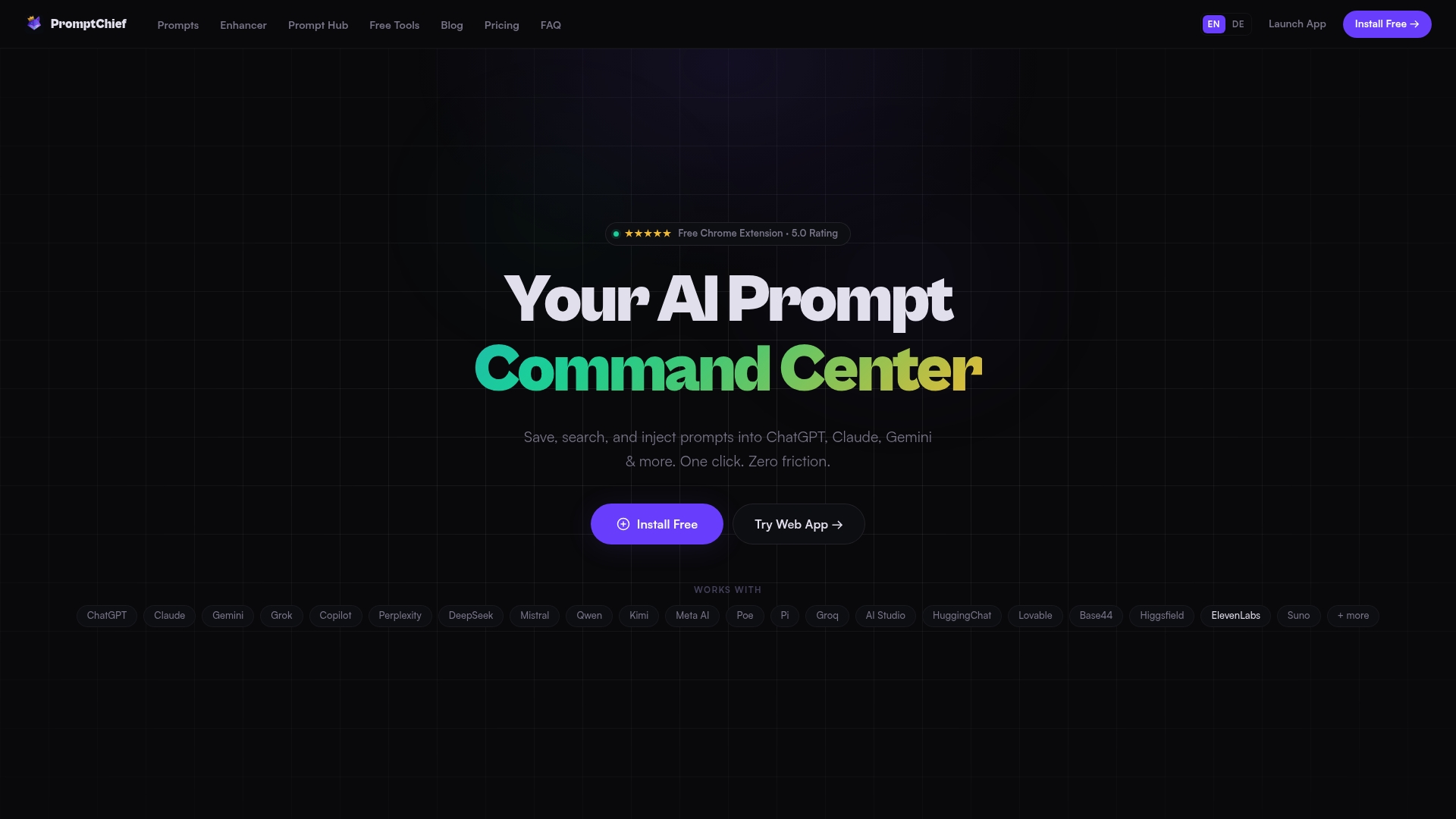
A simple notes file or spreadsheet is fine while you have a handful of projects and no one else touching your prompts. Once you are managing several active projects, sharing prompts with a team, or reusing templates across AI tools, upgrading to a dedicated manager saves the maintenance time a manual system quietly costs.
| Setup | Best for | Upgrade signal |
|---|---|---|
| Plain folder or notes file | Solo users, few active projects | Search starts taking longer than writing a new prompt |
| Notion database | Users who want filters and relations | Setup overhead outweighs the benefit |
| PromptChief | Teams and multi-project users | Need cloud sync, shared workspaces, or fast injection |
PromptChief's Plus plan runs $8.11 per month, with a Pro plan at $17.39 per month for higher limits and advanced features. Check the pricing page for current plan details, or start with the free plan to see whether the project-first structure fits before upgrading.
Sources
- Best practices for prompt engineering with the OpenAI API
- Using GenAI to validate and improve project schedules | UMD Project Management
- How to Organize ChatGPT Prompts (System That Scales) | Qrush
- How to Build a Prompt Library: Organize, Tag, and Reuse Your Best AI Prompts | SurePrompts
FAQ
What is the best way to structure a prompt?
A well-structured prompt puts instructions first, separates sections with clear delimiters, and includes one to three examples when the task is complex. OpenAI's prompt engineering guidance recommends this ordering because models respond more reliably when the format is explicit rather than implied.
What are some effective prompts for project management?
Effective project management prompts are usually built as templates with variables for project name, deadline, and stakeholders, rather than one-off text written from scratch each time. Common categories include status update summaries, risk assessment drafts, and meeting note structuring, each stored under the relevant project folder so they stay tied to real work.
How do I organize project ideas?
Group project ideas the same way you group prompts: by the project or initiative they belong to, with a few controlled tags for stage or theme. This keeps early-stage ideas discoverable later instead of scattered across notes apps and chat histories.
What tools help me organize prompts by project?
A plain folder system, a Notion database, or a dedicated prompt manager like PromptChief can all support project-first organization, and the right choice depends on how much automation and team sharing you need. Some dedicated prompt managers add cloud sync, fuzzy search, and team workspace features on top of the folder and tag structure described in this guide.
Should I use folders, tags, or both to organize prompts?
Most people do best with a hybrid: a project folder as the main home for each prompt, plus three to five controlled tags for cross-cutting filters like model or use case. Folders alone work for simple solo setups, but tags become necessary once you need to filter across multiple projects at once.