
The fastest way to categorize prompts is a compact taxonomy of five or six task categories, three core tags, a consistent naming pattern, and basic versioning. That's the whole system. Standardize the name first, add tags second, and let a tool handle sync and search once you're past a few dozen prompts.
TL;DR:
- Using either task-oriented or workflow-oriented taxonomy templates helps categorize prompts by their purpose or structure, streamlining browsing and search processes.
- Consistent naming patterns with versioning and descriptive short names prevent prompts from becoming lost or overwritten over time.
- Tagging prompts with specific labels like #email or #code-review enhances filtering and fine-grained organization beyond broad categories.
- Managing prompts in local files with Git or cloud-based tools depends on scale and collaboration needs, with migration to cloud recommended only after multi-device or team use.
- Regular prompt audits and cleanups, including removing duplicates and resolving contradictions, keep your library efficient and relevant as it grows.
Table of Contents
- What Are the Best Categories for Organizing Prompts?
- How Should You Name and Version Your Prompts?
- Where Should You Store a Growing Prompt Library?
- When Should You Audit and Prune a Prompt Library?
- Copy-Paste Templates for Solo Creators, Developers, and Teams
- Where the Workflow Above Maps to Real Tools
- How Strategies for Prompt Sharing and Collaboration Actually Work
- How Do You Integrate Prompt Categories With AI Tools and APIs?
- Why Most Advice on Prompt Organization Undersells Naming
- Adopt This Workflow With a Tool Built Around It
- Sources
- FAQ
What Are the Best Categories for Organizing Prompts?
Two taxonomy templates cover most use cases. Pick one and stop overthinking it.
The task-oriented taxonomy sorts prompts by what they produce. Prompt repositories like PromptSpace organize their entire browsing structure around this model, using buckets like image generation, copywriting, coding and development, data analysis, customer support, education, and personal productivity. If you write, code, or generate images regularly, this is the simpler starting point because it mirrors how you already think about your work.
The workflow-oriented taxonomy sorts by structure instead of subject: input type, output format, audience, tone, reliability level, and model constraints. Developers and teams tend to prefer this because it answers a different question. Not "what is this prompt for" but "how does this prompt behave."
Tags do the fine-grained work categories can't. Useful starter tags:
#email,#blog-outline,#social-caption(content prompts)#refactor,#debug,#code-review(coding prompts)#image-photorealism,#image-illustration(image prompts)#safety,#high-reliability(prompts where output accuracy matters most)
A prompt for rewriting cold outreach emails might live under Content, tagged #email and #tone-casual. That combination lets you filter by category when browsing and by tag when searching, which is exactly the split the empirical taxonomy of prompting techniques argues for: functional categories at the top level, finer distinctions underneath.
How Should You Name and Version Your Prompts?
A prompt without a naming convention is a prompt you'll rewrite from scratch in six months because you can't find it. Use this pattern:
ShortName | Role | Version | Date
Example: ColdEmail-Followup | SDR | v1.2 | 2026-01-15
- ShortName describes the output in two or three words. Skip full sentences.
- Role tells you the persona or function the prompt assumes (SDR, Editor, Analyst).
- Version tracks changes. Use semantic-style versioning (v1.0, v1.1, v2.0) if you iterate often, or a date stamp if you rarely touch a prompt after writing it.
- Date marks the last real edit, not the creation date. Useful during audits.
Decide early whether to branch or update inline. Branch (create v2.0 as a new entry) when the change alters the prompt's core behavior. Update inline when you're just fixing a typo or tightening phrasing.
Fragments solve the copy-paste problem. When you notice the same block of instructions, tone guide, or brand voice reminder appearing in five different prompts, extract it. Store it once, reference it with a placeholder like {{BRAND_VOICE}}, and every prompt using that fragment updates when you edit the source. This is the same pattern open-source prompt library tools use internally with fragment directories and metadata files.
Every prompt worth keeping should carry a few metadata fields: description, tags, expected inputs, expected output, one worked example, and last-used date.
Pro Tip: Write the "expected output" field before you write the prompt itself. It forces you to know what you're actually optimizing for, and it saves you from prompts that technically run but never produce what you need.
Where Should You Store a Growing Prompt Library?
Storage choice depends almost entirely on scale and who else needs access.
Local files with Git work well for developers who already live in a code editor. A typical layout looks like prompts/, fragments/, and a metadata.yml file tracking tags and descriptions per prompt. Git gives you full history, diffing, and code review for prompt changes, which matters more than people expect once two people start editing the same prompt.
CLI-based prompt libraries sit one step up. Tools built around commands like prompt create, fragment create, and prompt search guide you through structured entry so you don't skip metadata out of laziness. You get the speed of a terminal with the discipline of a schema.
Cloud prompt managers solve the problem both of the above eventually hit: you need your prompts on your phone, your work laptop, and inside whatever chat tool you're using that day. The tradeoff is real. Cloud tools cost money and tie you to a specific platform, while local files cost nothing and travel with any editor.
- Local/Git: free, version-controlled, developer-friendly, no cross-device sync
- CLI libraries: structured, fast, still largely single-machine
- Cloud managers: cross-device, searchable, subscription-based
A forum discussion on categorizing user prompts makes a point worth remembering here: a consistent naming scheme cuts search time more than any tool switch does. Migrate to cloud once you're managing prompts across more than one device or more than one person, not before.
When Should You Audit and Prune a Prompt Library?
Run a light audit monthly if you're actively writing new prompts every week. Quarterly is enough for a library you touch occasionally.
The audit itself follows a fixed order, and the sequence matters. The Prompt Cleanup Checklist from NewPrompt recommends removing duplicates first, then flagging contradictions between similar prompts, then collapsing rules that repeat themselves across a prompt, and stripping filler language last, so you don't accidentally cut something load-bearing before you've resolved the bigger structural issues.
- Pull a usage list: which prompts have you actually opened in the last month
- Delete or merge duplicates
- Resolve contradictions between prompts covering the same task
- Convert repeated one-off instructions into fragments
- Archive anything unused for nine months unless it's tagged evergreen
| Signal | Action |
|---|---|
| Used weekly | Keep, review tags |
| Used monthly | Keep, no action needed |
| Unused for nine months, not evergreen | Archive |
| Duplicate of another prompt | Merge or delete |
| Conflicts with another prompt's instructions | Resolve, then merge |
Marketplaces built around prompt browsing show a related pattern worth borrowing: frequently used prompts get promoted while unused ones fade out naturally. Build that same signal into your own archive rule.
Copy-Paste Templates for Solo Creators, Developers, and Teams
Adapt these directly into a Markdown file, a CLI's metadata.yml, or the fields of a cloud prompt manager.
| Template | Name | Tags | Description | Version |
|---|---|---|---|---|
| Solo creator | BlogOutline-SEO | Writer | v1.0 | #blog-outline, #seo | Generates a five-heading outline from a target keyword | v1.0 |
| Developer | CodeReview-Python | Reviewer | v2.0 | #code-review, #refactor | Reviews a function for readability and edge cases | v2.0 |
| Team | `SupportReply-Refund | Support | v1.0 | #support, #tone-empathetic | Drafts refund responses matching brand tone | v1.0 |
A fragment reference looks like this inside a prompt body: Use {{BRAND_VOICE}} when drafting the reply. The fragment itself lives once in a fragments/brand-voice.md file or its cloud-manager equivalent, and every prompt calling it inherits changes automatically. That's the entire point of separating fragments from finished prompts. You browse ready-made templates for more starting patterns if you'd rather adapt than build from scratch.
Where the Workflow Above Maps to Real Tools
Everything described so far, taxonomy, tags, naming, fragments, works whether you're managing five prompts or five hundred. The gap shows up in execution speed once your library grows.
- Cloud sync solves the multi-device problem local files can't
- Fuzzy search replaces manually scanning filenames for a half-remembered prompt
- One-click injection into a chat window replaces copy-paste entirely
- Template fields (description, tags, expected output) map directly to the metadata structure this article recommends
- Community hub browsing works like the category pages on repositories such as PromptSpace, but attached to prompts you actually saved
Readers who want the deeper mechanics of the naming and metadata system covered here can work through how to organize your AI prompts for a fuller setup walkthrough, or browse the prompt library to see tagging and naming applied across a large, live set of prompts.
How Strategies for Prompt Sharing and Collaboration Actually Work
Sharing a prompt with a teammate through a Slack message or a shared doc works exactly once. The second time, someone's working off an outdated version and nobody notices until the output looks wrong.
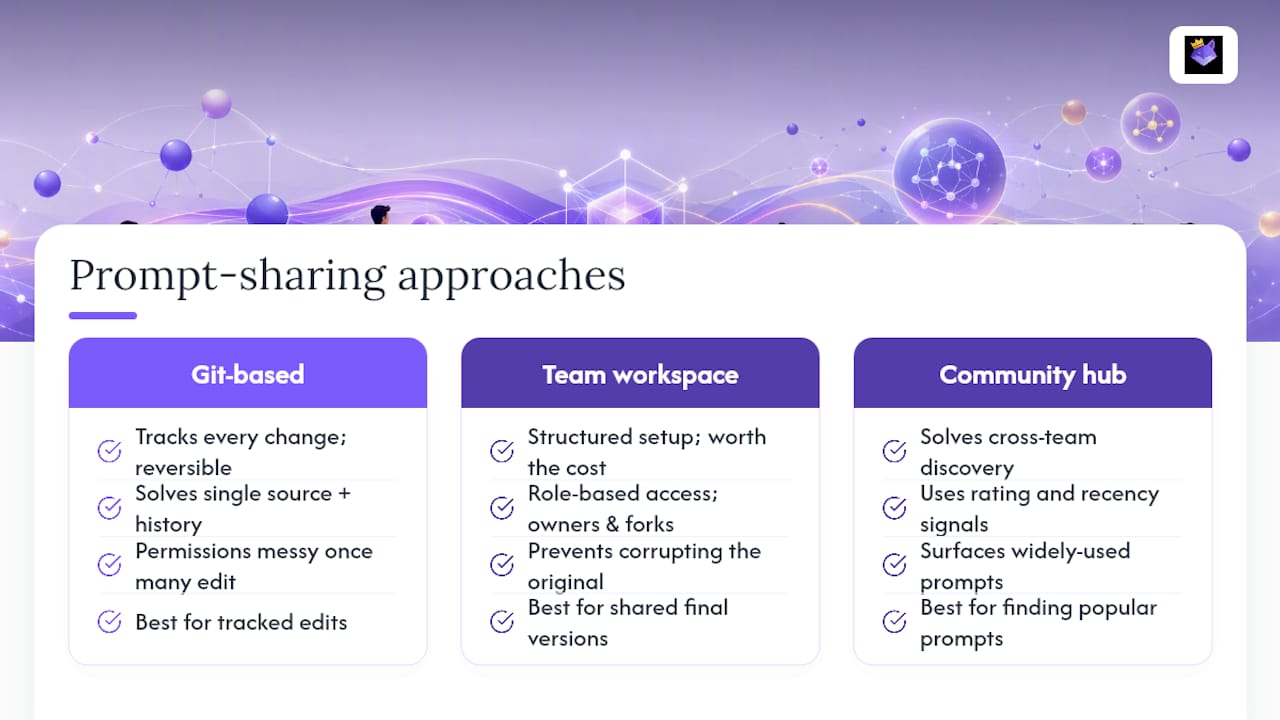
Real collaboration needs three things: a single source of truth, visible version history, and permission to edit without breaking someone else's workflow. Git-based setups solve the first two well since every change is tracked and reversible, but permissions get messy once more than two or three people are editing the same files. That's where structured team workspaces earn their cost. A shared workspace with role-based access lets one person own the "final" version of a support-reply prompt while others fork it for edge cases without corrupting the original.
Community prompt hubs solve a different problem: discovery across people who don't work together directly. Rating and recency signals, the same mechanism marketplaces use to surface good prompts, work inside a team too. If three people on a content team all rely on the same blog-outline prompt, that usage pattern should push it toward the top of shared search results, not bury it under one-off experiments nobody else needs.
The practical rule: keep drafts and experiments private, promote anything used more than twice to a shared space, and tag shared prompts more aggressively than personal ones, since other people can't rely on memory to find them the way you can.
How Do You Integrate Prompt Categories With AI Tools and APIs?
Categorization only pays off if the system you build actually plugs into where you work. A perfectly tagged prompt sitting in a spreadsheet still costs you a copy-paste every single time you use it.
The practical integration point is injection: pulling a categorized prompt directly into ChatGPT, Claude, Gemini, or whatever tool you're working in, without leaving that window to search a separate library. Tools like PromptChief handle this through a browser extension that surfaces your saved prompts inside the chat interface itself, filtered by the same tags and categories you set up during organization.
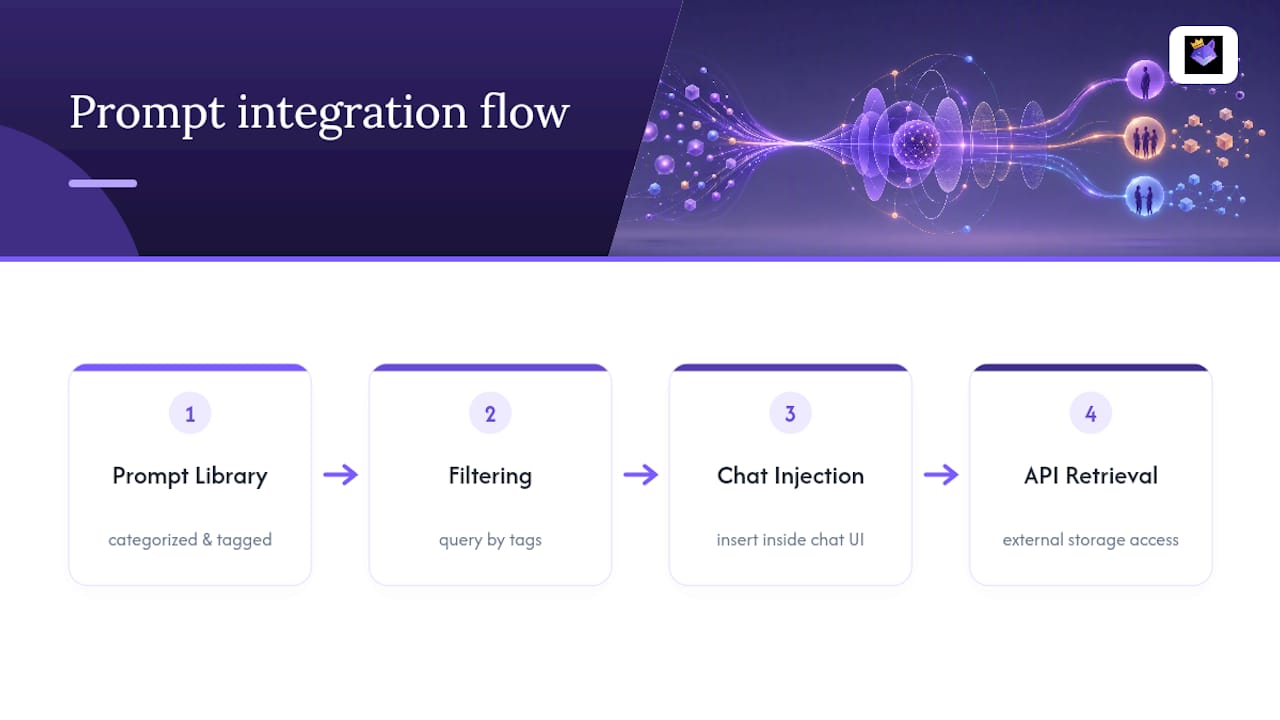
APIs raise the stakes further. If you're calling a model programmatically for a production feature, hardcoding prompts into your codebase means every wording change requires a deploy. Storing categorized prompts externally, whether in a CLI-managed repository or a cloud manager with API access, lets you swap prompt versions without touching application code. This matters most for teams running agent-style workflows, where a single tool call might need a different prompt variant depending on context. Developers building these patterns often look at tool-calling architecture to understand how prompt selection logic fits into a larger agent loop, since the categorization scheme you use for prompts often needs to mirror the decision logic the agent itself is making.
The common thread across every integration path: your taxonomy and tags aren't just organizational, they become the filtering logic your tools query against.
Why Most Advice on Prompt Organization Undersells Naming
Most guides treat categorization as the hard part. It isn't. Picking six task categories takes ten minutes. The part people skip is naming discipline, and it's the part that actually determines whether you find a prompt again in three months.
I'd argue the conventional advice has the emphasis backward. Elaborate folder structures and multi-level taxonomies look thorough, but they add friction every time you save something new. A flatter system with a strict naming convention and three or four tags scales better because it doesn't ask you to make a judgment call every single time. The empirical taxonomy work on prompting techniques makes a similar point in a different register: functional patterns matter more than granular subcategories most people never revisit.
Where I'd push back hardest is on tooling sequence. Don't adopt a cloud manager on day one just because it looks more organized. Start with plain files and a naming rule you can enforce by hand. Once you feel the friction, searching across devices, losing track of versions, that's the signal to move to something with sync and search built in, not before.
— John
Adopt This Workflow With a Tool Built Around It
Everything in this article, tagging, naming, fragments, versioning, works with plain files if you're disciplined about it. It gets considerably faster with prompt management software built to match that exact workflow.
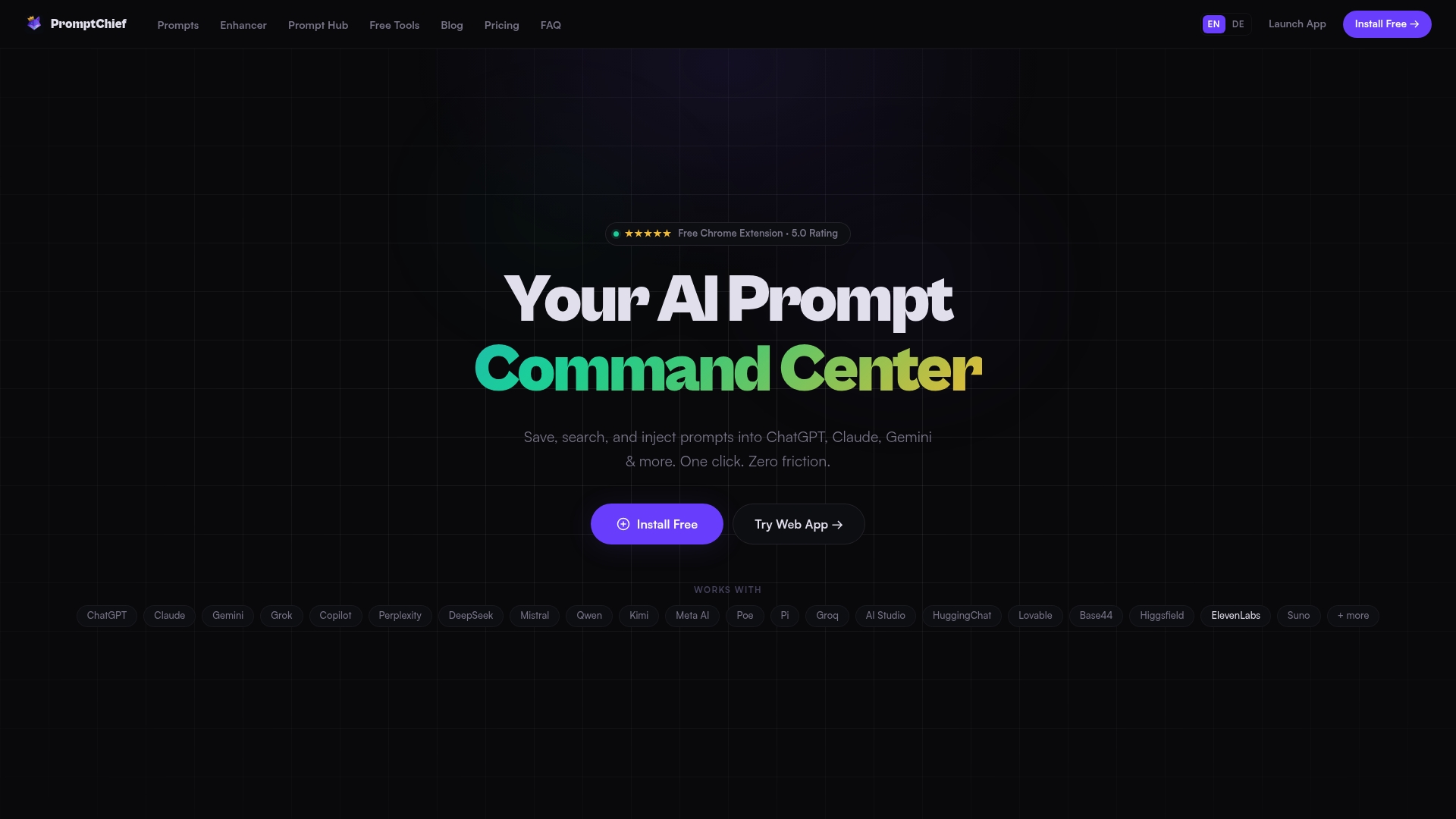
Prompt management software handles the categorization system above directly: cloud sync keeps your tagged prompts available across every device, fuzzy search finds a prompt by partial name or tag instead of forcing you to scroll, and one-click injection drops a saved prompt straight into ChatGPT, Claude, Gemini, or other supported platforms without a single copy-paste. Magic placeholders work like the fragment system described earlier, letting you swap variable content without rewriting the whole prompt, and community hubs give you a browsable category structure similar to what dedicated prompt repositories offer, except built around prompts you can actually save and reuse.
If you've been managing prompts in scattered docs and want the taxonomy from this article running inside a real tool, start with the prompt manager overview to see how the setup maps to your current library, or head straight to pricing to check the free plan's limits before upgrading.
Sources
- An empirical categorization of prompting techniques
- prompt-library (example prompt CLI)
- Prompt Cleanup Checklist | NewPrompt
- AI Prompt Categories — Browse by Use Case | PromptSpace
FAQ
What are the main categories for organizing prompts?
Most systems use task-based categories such as content, coding, data analysis, image generation, customer support, and automation, following the same structure prompt repositories use for their browse pages.
What are the three types of prompts?
Definitions vary, but a common breakdown separates prompts by function: instructional prompts (task commands), role-based prompts (persona or context setting), and few-shot prompts (examples guiding output format).
What are some good examples of AI prompts?
Practical examples include a blog-outline generator tagged for content, a code-review prompt tagged for development, and a refund-response template tagged for customer support, each stored with a clear name, version, and description.
What are good categories for journal or writing prompts?
Common groupings include reflection, gratitude, goal-setting, creative fiction, and daily recap, each of which can carry its own tags for tone and audience the same way task prompts do.
How do I start categorizing prompts if I have hundreds saved already?
Run the duplicate-and-contradiction cleanup pass first, following a structured checklist, then apply the naming convention and tags only to what survives, rather than trying to organize everything at once.