
The fastest way to back up ChatGPT is OpenAI's account export, which covers your full chat history for disaster recovery. The smarter long-term move is a separate, searchable prompt library (local or cloud) for the prompts you actually reuse. Automate either one, but check permissions before giving any tool access to your session.
TL;DR:
- Full account exports capture all conversations but require starting the process within a seven-day window before the link expires.
- Exporting files from Library is faster but only retrieves individual images, documents, or assets linked to specific chats.
- Building a structured prompt library in formats like Markdown, JSON, or CSV enhances retrieval and systematic improvement of reused prompts.
- Automating backups demands careful permission checks, favoring open-source or audited tools to protect sensitive session data.
- Account exports are suitable for disaster recovery, while daily prompt management benefits from cloud-synced libraries like PromptChief for quick access and editing.
Table of Contents
- Quick methods at a glance: pick the right approach fast
- How to export your full ChatGPT data
- ChatGPT Library vs account export: what each saves and when to use them
- Build a reusable prompt library: fields, formats, and versioning
- Automation and tools: what automated backups can do and how to vet them
- Diagnose and fix common export problems
- How PromptChief fits this workflow: cloud-synced prompt libraries and import/export best practices
- Treat exports as disaster recovery, not your working system
- Try PromptChief to build a cloud-synced prompt library
- Key OpenAI docs and authoritative pages to verify export steps and policies
- Sources
- FAQ
Quick methods at a glance: pick the right approach fast
Before you commit to a workflow, match the method to the job. Each option solves a different problem, and conflating them is the most common mistake people make with ChatGPT backups.
- Export your account data when you want a full archive of every conversation, useful for disaster recovery or compliance.
- Download files from Library when you only need the images, documents, or generated assets tied to one chat.
- Copy prompts into notes or cloud docs when you want a quick, informal save without setting up a system.
- Use a prompt manager when you want tagged, searchable, cloud-synced prompts you can reuse across devices and tools.
The export is slow and heavy. The prompt manager is fast and built for daily use. Most people need both: an export sitting in reserve, and a prompt library doing the actual work.
How to export your full ChatGPT data
A full export is the only method that captures your entire account history, and OpenAI's own export guidance lays out a specific process you need to follow closely or risk missing the window.
- Open Settings, go to Data controls, and select Export, or submit the request through the Privacy Portal.
- Wait for the confirmation. OpenAI notes exports can take up to seven days to process.
- Check your email, SMS, spam folder, and promotions tab for the download notice.
- Open the download link while signed into the same account that requested it.
- Save the ZIP immediately to private storage, since the link expires 24 hours after it arrives.
The export link expires exactly 24 hours after delivery, which is the detail most people miss. If you click it two days later expecting it to still work, you will have to start the whole request over.
If the export never shows up, do not resubmit right away. OpenAI advises letting the current request finish before asking for a new one, and contacting Support only after the full seven-day window has passed.

ChatGPT Library vs account export: what each saves and when to use them
These two systems look similar but serve different purposes, and OpenAI treats them as separate systems entirely.
- Library stores files you uploaded or that ChatGPT generated during a chat, and you can select one or more files and download them individually.
- Library files persist on their own schedule: deleting a chat does not automatically delete the files you saved there, so a file can outlive the conversation that created it.
- Full export bundles your account data into a package that includes a conversations.json file, which is a record of your chats rather than a live copy of them.
- Exported conversations do not restore a deleted chat: uploading an exported JSON file to another account makes it available as reference text, not a rebuilt sidebar, memory, or subscription state.
If you need a single image or PDF you generated last week, go to Library and download that file directly. If you want a snapshot of everything in case your account gets compromised or you switch devices, request the full export. Treat the export as an archive you hope to never open, not a working copy of your chat history.
Build a reusable prompt library: fields, formats, and versioning

Scattered prompts in a notes app or a chat thread are hard to find later and impossible to improve systematically. A structured library fixes both problems.
Give each entry a consistent set of fields: title, one-line purpose, the prompt text itself, any variables or placeholders, the model it was built for, relevant tags, and the date you last tested it. Store the library in a portable format: Markdown works well for readability, JSON suits structured backups you want to script against, and CSV is handy for bulk imports into a spreadsheet or another tool.
- Markdown for human-readable prompts you browse and edit by hand.
- JSON for structured exports you might feed into another tool or script.
- CSV for bulk imports when you are migrating dozens of prompts at once.
- Consistent tags (by task, by model, by project) so search actually works once the library grows past a few dozen entries.
Pro Tip: Add a "last tested" date to every prompt entry so you can tell at a glance which ones still work on the current model version.
This pattern matters because an export is a snapshot you hope to never need. A library is the thing you open every day, and it only earns that role if you can find what you saved. The internal structure described in how to organize your ChatGPT prompts covers naming conventions in more depth if you want a starting template.
Automation and tools: what automated backups can do and how to vet them
Automation can save real time, but it also means handing a piece of software access to your account, so the vetting step is not optional.
A well-built tool can run incremental exports in JSON or Markdown, keep a local searchable copy of your prompts, and take scheduled snapshots so you are never relying on memory alone. Before you install anything, run through a short checklist.
- Check what access it requests: a tool that needs your active session token carries more risk than one that only reads exported files.
- Favor minimal permissions: if a browser extension asks for broad site access it does not need, skip it.
- Read the privacy policy: know where your prompt data actually goes once the tool processes it.
- Prefer audited or open-source tools when the option exists, since you can verify what the code actually does.
A practical setup looks like this: run a scheduled local export for disaster recovery, then import your working prompts into a cloud-synced manager like PromptChief's prompt manager with cloud sync and a Chrome extension so you can inject them directly into ChatGPT without digging through old chats. Browser-based backup extensions in general may need access to an active ChatGPT session to request conversations on your behalf, so treat any such tool as high-trust software and read its permission prompts carefully.
Diagnose and fix common export problems
Most export failures trace back to one of four causes, and each has a specific fix.
- If the email or text never arrives, check spam and promotions folders first, then wait out the full seven-day processing window before contacting Support.
- If the link has expired, request a brand new export rather than retrying the old link, and download the ZIP the moment it lands.
- If conversations seem to be missing from the file, remember that exports cannot bring back chats you already deleted, which is exactly why a separate prompt library matters for anything you cannot afford to lose.
- If you cannot sign in to request the export, use the Privacy Portal to submit the request and follow the account's password-reset flow before trying again.
On Android, the same flow applies through Data controls, and OpenAI's Android app guidance confirms the 24-hour expiration holds there too, though some app versions redirect you to the web flow to finish the request.
How PromptChief fits this workflow: cloud-synced prompt libraries and import/export best practices
Once you have an export sitting in reserve, the daily work is managing the prompts you actually use, and that is the gap PromptChief is built to close.
- Save, search, and inject prompts directly into ChatGPT, Claude, Gemini, and other tools without retyping or hunting through old chats.
- Cloud sync keeps your library current across every device you work from, so a prompt you save on a laptop is there on your phone too.
- Metadata fields like tags, variables, and model notes mirror the library structure described earlier in this guide.
- Import and export support lets you move prompts in and keep an independent copy outside the platform.
A sensible setup pairs an OpenAI account export every so often for disaster recovery with an actively maintained prompt library structure in PromptChief for everything you use day to day. For teams, keep workspace sharing settings deliberate and store any raw export archives in private storage rather than a shared drive.
Treat exports as disaster recovery, not your working system
Account exports are useful but slow and limited: they are built for occasional recovery, not for finding a prompt you wrote three weeks ago. Depending on them for daily reuse means digging through a JSON file every time, which defeats the point of saving a prompt in the first place.
A real prompt library solves version control, quality checks, and fast retrieval, none of which an export file was designed to do. Shared links and automated backup tools add convenience, but OpenAI itself warns that shared links are accessible to anyone who has the URL, so they are not a substitute for a private, controlled backup.
— John
Try PromptChief to build a cloud-synced prompt library
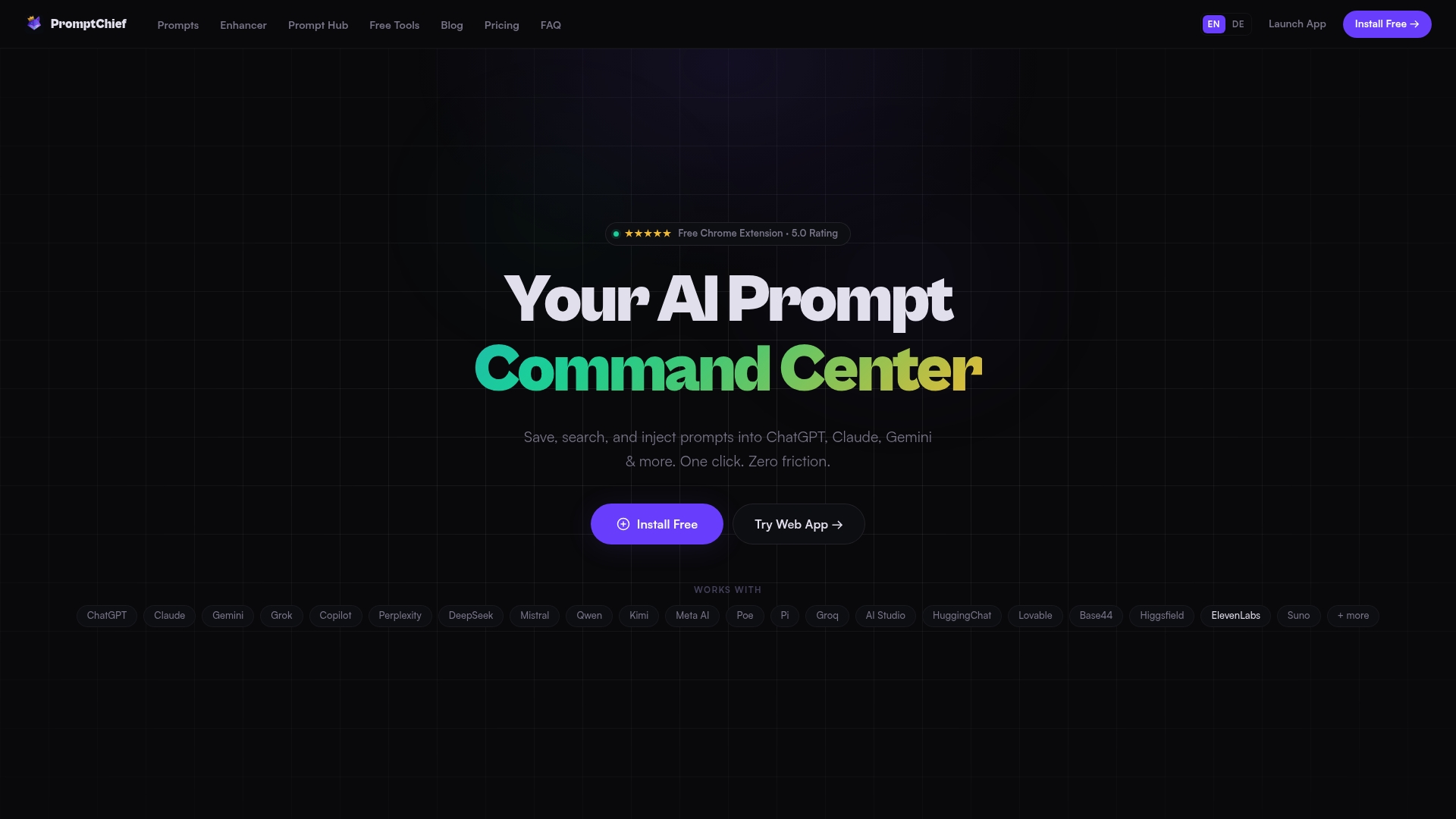
PromptChief turns the scattered prompts sitting in old ChatGPT threads into a searchable library you can reach from any device. Instead of re-exporting your whole account every time you need one good prompt, you save it once, tag it, and inject it straight into your next chat.
- Free plan available now at Promptchief with no setup required.
- Plus runs $8.11 per month or €69.90 per year for a full searchable library with cloud sync.
- Pro and Teams add advanced features and per-seat pricing, detailed on the pricing page.
Check availability on the free plan today and see whether your prompt workflow needs the upgrade.
Key OpenAI docs and authoritative pages to verify export steps and policies
For the exact, current policy details, go directly to OpenAI's own documentation rather than relying on secondhand summaries. The export data guide covers timing and the Privacy Portal process, the Library help page explains file storage, the transfer guidance covers moving exports between accounts, and the Android FAQ addresses mobile-specific steps.
FAQ
How can I back up my ChatGPT chats?
Request a full export from Settings under Data controls, or through the Privacy Portal, and download the ZIP file while signed into the same account. For prompts you reuse often, also keep a separate entry in a prompt library so you are not relying on the export alone.
Is there a downloader for ChatGPT files?
Yes, files you uploaded or that ChatGPT generated can be downloaded individually from the Library, separate from a full conversation export. Select one or more files in Library and choose download to get just those assets.
Why isn't my ChatGPT data export working?
The most common cause is a missed 24-hour download window, after which the link stops working and you need to request a new export. Processing can also take up to seven days, so check spam and promotions folders before assuming the request failed.
How can I export ChatGPT chats as PDFs?
OpenAI's built-in export produces a data package rather than individual PDFs, so chats arrive as part of that archive, not as separate PDF files. If you need a PDF of one specific conversation, you would need to save or print that chat directly rather than relying on the account-level export.
How do I restore a backed-up prompt into ChatGPT?
Open your saved prompt from wherever you stored it, whether a document, a JSON file, or a prompt manager, and paste or inject it into a new chat. A tool built for prompt management, such as a cloud-synced prompt manager, can inject the prompt directly without manual copying.