
TL;DR:
- Export prompts reliably using REST API or CLI tools that output JSON for full metadata preservation. Store these exports in Git with schema validation, and regularly synchronize with Promptchief for cross-platform prompt management. Automated workflows and proper security measures ensure long-term portability and safety.
For most workflows, the fastest and most reliable way to export prompts is through a REST API or CLI tool that outputs JSON. Use browser-local scripts when API access is unavailable or when you need a quick one-off backup without exposing credentials. For full metadata dumps, a DB-level or platform-native export is worth the extra setup. For long-term portability, team sync, and cross-platform injection, Promptchief is the recommended prompt management layer.
Quick format guide:
- JSON — full fidelity, preserves metadata, best for programmatic re-import
- Markdown — human-readable, version-control-friendly, good for documentation
- CSV — simple tabular metadata, useful for audits and spreadsheet review
Platform examples that show how much export workflows vary:
- Microsoft Copilot uses PowerShell cmdlets (
Export-PromptsUserContent,Export-PromptsGroupContent) for admin-scoped exports from Copilot Prompt Gallery - Langfuse has community-driven import/export pairing via pull requests, reflecting how open-source tooling fills gaps that official APIs leave open
- OpenAI's built-in export is asynchronous and can take up to 7 days, making it impractical for any automated workflow
Table of Contents
- What export methods can you actually use?
- Which file format should you use for exported prompts?
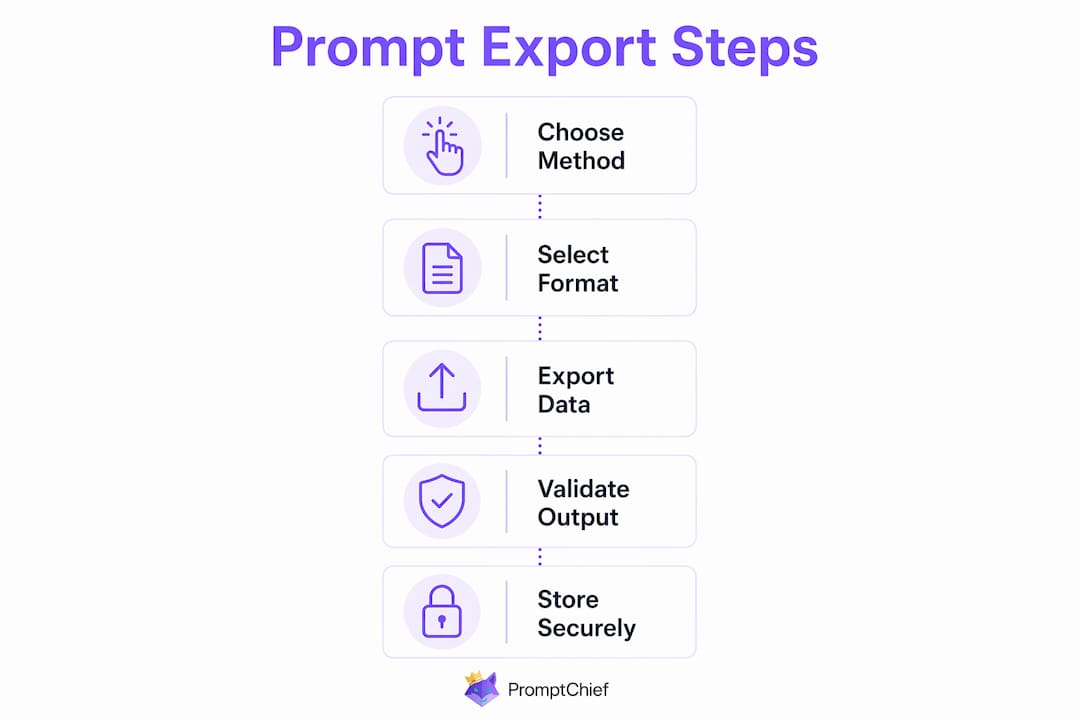
- How do you run an actual export, step by step?
- How do you re-import prompts without creating duplicates?
- What security risks come with exporting prompts?
- How do you build a durable, portable prompt library?
- What causes export and import failures, and how do you fix them?
- What's the recommended approach, and what should you do next?
- Key Takeaways
- The case for treating prompts like production code
- Promptchief makes prompt portability practical for teams
- Useful sources and references
- FAQ
What export methods can you actually use?
Every major AI platform exposes at least one export surface, but they differ sharply in speed, completeness, and how much privilege they require.
Built-in UI exports are the path of least resistance. OpenAI's "Download your data" option, for example, generates a ZIP through the Privacy Portal — but because it's asynchronous and can take up to 7 days, it's only practical for compliance backups or one-time migrations, not anything time-sensitive.
REST APIs are the right choice for repeatable, automated exports. Most prompt management platforms expose endpoints for listing and fetching prompts, secured with header-based API key authentication. CLI tools built on these APIs let you filter by tag, date range, or project and pipe output directly to JSON or Markdown files — exactly what you want for a scheduled backup or CI job.

PowerShell / platform-specific tooling matters when you're in a Microsoft 365 environment. Copilot Prompt Gallery exposes two cmdlets for admins: Export-PromptsUserContent (per-user saved, liked, and shared prompts) and Export-PromptsGroupContent (team-scoped prompts). These require configuring the PowerShell environment with the appropriate module first.
Browser-local exporters and bookmarklets are the fastest option when you don't have API access. Tools like chatgpt-chat-exporter run entirely in the browser console, use no API keys, and send nothing to third-party servers. That makes them the preferred choice for security-conscious users on Team or Business workspaces that lack built-in export features.

Session-token-based exporters go deeper. They use your active browser session to call internal API endpoints, which lets them pull project metadata and custom assistant configurations that official exports often miss. The trade-off: they're fragile to UI changes and need frequent maintenance.
DB-level or admin exports, where available, give you the richest metadata but require elevated privileges. Use them for full-library migrations or compliance audits, not routine backups.
Which file format should you use for exported prompts?
Format choice determines whether your export is actually useful six months from now.
| Format | Best for | Trade-offs |
|---|---|---|
| JSON | Programmatic re-import, full metadata, CI pipelines | Requires a parser; less human-readable |
| Markdown | Documentation, Git history, readable reviews | Loses structured metadata unless front matter is added |
| CSV | Audits, spreadsheet review, simple tabular metadata | No nesting; poor fit for multi-line prompt bodies |
| Plain text | Quick reference, human review | No metadata; not re-importable without manual work |
JSON is the right default for any export you plan to re-import. A minimal schema that preserves fidelity across platforms looks like this:
{
  "id": "uuid-v4",
  "title": "Summarize meeting notes",
  "body": "You are a meeting summarizer. Given the following transcript...",
  "role": "system",
  "placeholders": ["{{transcript}}", "{{output_format}}"],
  "tags": ["meetings", "summarization"],
  "created_at": "2025-11-01T09:00:00Z",
  "updated_at": "2026-03-15T14:22:00Z",
  "source_platform": "chatgpt",
  "version": "2"
}
A few encoding notes worth getting right before you run a large export:
- Always use UTF-8 encoding; mixed encodings corrupt multi-language prompts silently
- Preserve newlines as
- Escape backticks and code blocks carefully — prompt bodies frequently contain Markdown code fences that break naive JSON serializers
- Include
placeholdersas a structured array, not embedded in the body string, so import tooling can validate and map them
Rich local exporters like ezwep/chatgpt-exporter generate separate output folders for JSON, Markdown, HTML, projects, and resources, plus an index.html viewer for local browsing. That folder structure is worth adopting even for hand-rolled exports. Official platform exports sometimes omit custom GPT configurations and project resource files entirely, so community tools often fill those gaps.
For schema and placeholder design, system prompt templates are a useful reference for how structured prompts should be organized before export.
How do you run an actual export, step by step?
API export via curl
- Authenticate: set your API key as a header (
Authorization: Bearer YOUR_API_KEY). - List prompts:
GET /api/prompts?page=1&per_page=100— paginate until you've fetched all records. - For each prompt ID, fetch the full payload:
GET /api/prompts/{id}. - Write each response to a JSON file:
curl -s -H "Authorization: Bearer $API_KEY" https://api.example.com/prompts/$ID > prompts/$ID.json. - For large libraries, add a
sleep 0.5between requests to stay within rate limits.
CLI export
Using a CLI with export support:
- Install the CLI and authenticate (
cli auth login). - Run:
cli prompts export --tag=production --format=json --output=./exports/. - Add
--since=2026-01-01to run incremental exports after the first full dump. - Pipe output to
jqfor validation:cli prompts export | jq '.[] | .id' | wc -l.
Microsoft Copilot PowerShell export
For Copilot Prompt Gallery admin exports:
- Install the required PowerShell module and connect to your Microsoft 365 tenant.
- Export a specific user's saved prompts:
Export-PromptsUserContent -UserAadIdOrPrincipalName user@contoso.com -ExportDirectory C:\PromptsExport -PromptType saved - Export prompts shared with a team:
Export-PromptsGroupContent -M365TeamsGroupId d0efcad2-6744-0de6-0624-ea467d4293af -ExportDirectory C:\PromptsExport - The output file is prefixed with "User" or "Group" plus the relevant ID, and contains structured properties including
Prompt.Title,Prompt.PromptText,Prompt.Products, and timestamp fields.
Browser script export
- Open the target AI platform and sign in.
- Open the browser console (F12 → Console).
- Paste the exporter userscript and run it — it uses your active session, no API key needed.
- Download the output as JSON or Markdown directly to your local machine.
For large exports: use tools with incremental export and concurrency controls — they skip already-exported items, resume on failure, and let you configure concurrency to avoid hammering rate limits.
Pro Tip: Run your first export on a small subset (10–20 prompts) before a full library dump. Validate the output schema before scaling up.
How do you re-import prompts without creating duplicates?
Static backups are not enough. Pairing exports with import capability is what keeps a prompt library actually usable across tools and environments.
Idempotent import strategies:
- Match incoming records by stable
idfield first; fall back to a hash oftitle + bodyif IDs differ across platforms. - Apply update-if-different logic: compare
updated_attimestamps and only overwrite when the incoming record is newer. - Maintain a mapping table for IDs that change between source and target systems.
- Preserve audit fields (
created_at, originalsource_platform) even when updating — don't let an import silently reset provenance.
Overwrite rules to set explicitly:
- User-edited prompts should never be silently overwritten by an automated import; flag conflicts for manual review.
- Imported prompts that match by title but differ in body should create a new version, not replace the existing one.
Sync approaches:
- One-way import works for migrations and initial setup.
- Two-way sync requires conflict resolution logic and is only worth the complexity for teams actively editing prompts in multiple systems simultaneously.
- CI-triggered sync: pull the latest export from Git on a schedule, run the import job against the target prompt manager, and log diffs.
Practical import checklist:
- Validate JSON schema before import (use
ajvor a similar validator) - Deduplicate by ID and title hash
- Run a dry-run pass first (
--dry-runflag) and review the diff log - Import in batches of 50–100 records; log each batch result
For cross-platform injection after import, Promptchief's OpenClaw integration lets you push synced prompts into 27+ AI platforms without manual copy-paste.
What security risks come with exporting prompts?
Exported prompt files carry more risk than most developers expect. A prompt library often contains API endpoint patterns, system instructions that reveal product logic, and occasionally PII from conversation history.
Key risks and mitigations:
- Local vs. cloud exporters: Browser-local tools like chatgpt-chat-exporter keep data in your browser and send nothing to third-party servers. Cloud-based exporters may store your session data or API keys on their infrastructure — read their privacy policies before use.
- API key exposure: Never embed live API keys in exported JSON files. If a key was used for a one-off export and may have been logged or cached, rotate it immediately after.
- File protection: Encrypt exported files at rest (AES-256 is standard). Transfer only over HTTPS or SFTP. Apply scoped access controls so only the team members who need the export can read it.
- PII in prompt bodies: Scrub personally identifiable information before committing exports to Git or sharing across teams. Use redaction hooks in your export pipeline to strip known PII patterns (email addresses, names, account numbers).
- Limit exported fields: Export only the fields your workflow actually needs. Omitting
conversation_historyoruser_contextfields from a prompt-only export reduces exposure significantly.
Pro Tip: Add a .gitignore rule for any export file that might contain raw API keys or PII before you initialize a prompts repo. Secrets committed to Git are extremely difficult to fully purge.
For a structured approach to prompt governance and measurement, AuthorityLayer's methodology provides a useful framework for teams building formal prompt analysis processes.
How do you build a durable, portable prompt library?
The core risk with any AI platform is vendor lock-in. Platforms change their export formats, deprecate APIs, or shut down features with little notice. The only reliable hedge is a platform-independent canonical store.
Practical portability strategy:
- Store canonical prompts as JSON or Markdown in a Git repository. Git gives you version history, branching for experiments, and a clear audit trail.
- Add CI checks: lint JSON schema on every commit, run a dry-run import to catch format regressions before they reach production.
- Use automated prompt engineering patterns to keep your CI pipeline prompt-aware.
- Use Promptchief for daily operations: cloud sync across devices, Chrome extension injection into 27+ platforms, team workspaces, and tagging with fuzzy search.
Metadata and governance:
| Governance dimension | Recommended practice |
|---|---|
| Tagging taxonomy | Define a controlled tag list; enforce it via CI lint |
| Version fields | Increment version on every substantive body change |
| Change logs | Maintain a CHANGELOG.md per prompt or per library |
| Team access controls | Role-based access: read for all, write for prompt owners, admin for CI service accounts |
| Audit fields | Preserve created_at, updated_at, source_platform through every import cycle |
Operational workflow:
CI-triggered export → schema validation → pull request review → merge to prompts repo → scheduled import/sync to Promptchief for runtime injection and team sharing.
A prompt management workflow that maps to this CI/CD pattern keeps prompt libraries as maintainable as application code. For tagging and organization examples, the Promptchief prompt library shows how a well-governed public library is structured.
What causes export and import failures, and how do you fix them?
Most failures fall into four categories.
Permission and auth errors: Check that your API key has the correct scope for listing and reading prompts, not just writing. For browser scripts, session tokens expire — re-authenticate and re-run. For DB-level exports, confirm you have the required admin role before starting.
Format and encoding problems: Validate your JSON output with a schema validator before treating it as complete. UTF-8 BOM characters at the start of a file will break most JSON parsers silently. CRLF line endings in prompt bodies cause inconsistent behavior across operating systems — normalize to LF before committing to Git.
Rate limits and partial exports: If an export job stops mid-run, check the platform's rate limit documentation. Implement exponential backoff (start at 1 second, double on each 429 response, cap at 60 seconds). Use incremental export features where available so a resumed job skips already-exported records rather than starting over.
Import conflicts: Always run with --dry-run first and review the conflict log. Import in small batches (50 records) so a single bad record doesn't abort the entire job. Detailed per-record logs are worth the extra setup time when debugging a 500-prompt import.
What's the recommended approach, and what should you do next?
Automate exports via API or CLI, store canonical copies in Git, and use Promptchief for daily team workflows and cross-platform injection. That combination covers automation, portability, and runtime usability without depending on any single platform's built-in save function.
Immediate next steps:
- Pick JSON as your export format and run a one-off export today
- Initialize a Git repo for your prompt library with a
README.mdand a schema validation CI step - Add a scheduled export job (weekly at minimum, daily for active teams)
- Enable Promptchief's import/sync features to keep your runtime prompt manager current with the canonical Git store
- For Copilot environments, configure the PowerShell module and run
Export-PromptsUserContentfor each active user
Key Takeaways
Automating prompt exports via API or CLI and storing canonical copies in Git is the most reliable path to long-term portability and team-ready prompt management.
| Point | Details |
|---|---|
| Prefer JSON for exports | JSON preserves full metadata and supports programmatic re-import; use Markdown for readable VCS copies. |
| Automate with API or CLI | Schedule regular exports via REST API or CLI; use browser-local scripts only when API access is unavailable. |
| Store exports in Git | Version-controlled prompt repos with CI schema checks prevent format regressions and enable audit trails. |
| Pair exports with imports | Static backups alone are insufficient; idempotent import logic keeps prompt libraries current across tools. |
| Use Promptchief for daily ops | Promptchief provides cloud sync, team workspaces, and injection into 27+ platforms for runtime prompt management. |
The case for treating prompts like production code
Most developers underestimate how quickly a prompt library becomes a liability without proper export discipline. The instinct is to save prompts in whatever interface you're already using — ChatGPT's sidebar, a Notion page, a shared doc — and assume that's good enough. It isn't, and the failure mode is predictable: a platform changes its export format, a team member leaves with prompts only in their personal account, or a workspace gets suspended and the library is gone.
The export-to-Git pattern described here isn't novel. It's the same discipline applied to infrastructure-as-code and configuration management. What's different with prompts is that the tooling is still catching up, and most teams haven't formalized the workflow yet. That gap is where the real risk sits.
The argument for browser-local exporters over cloud-based ones deserves more weight than it usually gets. When you run a session-token-based exporter in your own browser, the data never leaves your machine. That's a meaningful security property, especially for teams working with proprietary system prompts or prompts that reference internal product logic. The fragility trade-off (these tools break when UIs change) is real, but it's manageable with a monthly maintenance check. The alternative — routing your prompt library through a third-party cloud exporter — introduces a supply-chain risk that's harder to audit.
The CI-triggered export-to-Git workflow is where this all comes together. Treat your prompts repo the same way you treat your infrastructure repo: pull requests for changes, automated schema validation, and a clear owner for each prompt. That discipline pays off the first time a platform deprecates a feature and you need to migrate 300 prompts to a new tool in an afternoon.
Promptchief makes prompt portability practical for teams
If you've built the export-to-Git workflow described here, Promptchief is the runtime layer that completes it. You keep canonical prompts in Git for version control and auditability. Promptchief handles the daily operations: cloud sync across every device your team uses, a Chrome extension that injects prompts directly into ChatGPT, Claude, Gemini, and 27 other platforms, team workspaces with role-based access, fuzzy search across your full library, and magic placeholders that make prompts reusable without manual editing.
The import/sync features let you push updates from your Git store into Promptchief on a schedule, so the runtime library stays current without manual copy-paste. For teams already using Microsoft Copilot, the Promptchief Copilot integration adds a management layer on top of the native PowerShell export workflow. If you're evaluating prompt managers and want to see how Promptchief compares on features, the best AI prompt managers guide covers the category in detail. Ready to stop managing prompts manually? Start with Promptchief and connect your existing prompt library in minutes.
Useful sources and references
The following resources back the commands, workflows, and tools described in this article. Check platform-specific docs before running any admin-level export.
| Resource | What it contains |
|---|---|
| Microsoft Learn: Copilot Prompt Gallery export | Full PowerShell cmdlet reference, parameter tables, and export file property definitions for Copilot |
| OpenAI Help Center: Export ChatGPT data | Official instructions for the asynchronous "Download your data" export, including timing and format notes |
| Sourcegraph CLI prompts export | CLI command reference for programmatic prompt exports with tag filtering and JSON output |
| chatgpt-chat-exporter (GitHub) | Browser-local exporter; no API keys required; outputs JSON and Markdown |
| shtse8/chatgpt-export (GitHub) | Session-token-based exporter with incremental export, concurrency controls, and resume support |
| ezwep/chatgpt-exporter (GitHub) | Multi-format exporter (JSON, Markdown, HTML) with project metadata and attachment support |
| prompts.chat (GitHub) | Community prompt library and discussion on self-hosting for long-term ownership |
| Langfuse import/export PR | Community discussion on pairing exports with import capability for production workflows |
| ChatGPT bookmarklet exporter | Lightweight bookmarklet for single-page Markdown or HTML exports |
| AuthorityLayer methodology | Framework for prompt governance, measurement, and formal analysis methodology |
Before running any DB-level or admin export: confirm your role permissions with your platform administrator and review the platform's data handling policy. Admin-scoped exports often include data beyond your own prompts.
FAQ
How do I export Copilot prompts with PowerShell?
Use the Export-PromptsUserContent cmdlet with the user's Entra ID or UPN, an output directory, and a PromptType parameter set to saved, shared, or liked. For team-scoped exports, use Export-PromptsGroupContent with the Microsoft Teams group ID.
How do I export my ChatGPT prompt history?
OpenAI's built-in export (Settings → Data Controls → Export Data) generates a downloadable ZIP but can take up to 7 days to process. For immediate exports, use a browser-local script like chatgpt-chat-exporter, which outputs JSON or Markdown directly from your active session.
What is the best format for exporting prompts?
JSON is the best format for any export you plan to re-import programmatically, because it preserves full metadata including IDs, timestamps, tags, and placeholders. Use Markdown for human-readable, version-control-friendly copies stored alongside your codebase.
How do I export from the command prompt or CLI?
Most prompt management CLIs follow a pattern like cli prompts export --format=json --output=./exports/, with optional flags for tag filtering and date ranges. Authenticate first, then paginate through results if your library exceeds the default page size. The Sourcegraph CLI is a concrete reference implementation.
Can Promptchief import and sync exported prompts?
Yes. Promptchief supports cloud sync and import workflows that let you push prompts from a Git-based canonical store into the platform for runtime injection across 27+ AI tools, including ChatGPT, Claude, and Gemini, without manual copy-paste.