
Conversation history usually follows you from phone to laptop the moment you sign into the same account, but saved prompt libraries, folders, and extension-based organization typically stay stuck on one device. The fastest fix is a cloud-synced prompt manager or a disciplined file-sync and snippet workflow, paired with a recovery export so you never lose your work if an account changes or sync breaks.
TL;DR:
- Prompt libraries and custom folders stored locally or in extension data are device-specific and do not automatically sync across different browsers or platforms.
- Workspace restrictions and private network firewalls can prevent cloud connectors and integrations from functioning properly on new devices.
- Using a dedicated cloud prompt manager with sync capabilities offers the most seamless way to access prompts everywhere, but requires trust and subscription costs.
- Regular manual backups in JSON or plain text, along with testing prompt injections on mobile devices, help avoid data loss or broken workflows during device changes.
- Model drifting can affect prompt performance after switching AI models, so calibration tests are essential to maintain effectiveness.
Table of Contents
- What major AI platforms sync and what they leave behind
- Why prompt libraries and organization usually fail to appear across devices
- Practical methods to sync prompts across devices
- Step-by-step: set up a cloud-synced prompt library
- Troubleshooting common sync problems
- Manual backup and export strategies
- Practitioner perspective: preparing your prompt library for change
- PromptChief: a direct solution for cloud-synced prompt libraries
- FAQ
- Sources
What major AI platforms sync and what they leave behind
Signing into the same account on a new device generally brings your conversation history and account-level projects with you. That part is handled well by the platforms themselves, and it's rarely the source of frustration readers report.
What doesn't travel automatically is anything tied to a browser extension or local storage: saved prompt libraries, custom folders, pinned chats, tags, and multi-step prompt chains. OpenAI's own troubleshooting guidance confirms that while chat history syncs through the account, prompt libraries and folder-style organization usually need a third-party tool to move between devices. Anthropic's documentation on connector behavior describes a similar pattern: connected content works across Claude clients, but anything built on custom connectors depends on infrastructure that has to be reachable from the vendor's cloud.
A few practical patterns show up repeatedly:
- Chat history and account settings sync through the platform's own servers.
- Saved prompts, folders, and pinned items are often scoped to a browser extension or local app storage.
- Workspace or enterprise accounts can have admin-level restrictions that limit what syncs at all.
Why prompt libraries and organization usually fail to appear across devices
The disconnect comes down to where the data actually lives. A browser extension typically stores its data against a specific browser profile, not your AI account, so switching from Chrome on a laptop to Safari on a phone can leave your saved prompts behind entirely.
There's also a structural separation between the app, the extension, and the cloud account layer. Each one can hold a different slice of your data, and they don't automatically reconcile. Add an admin-managed workspace into the mix, and sync can be deliberately limited by policy rather than by a bug.
- Browser profile and extension storage are tied to a specific device and browser, not your account.
- App, extension, and cloud layers often store different data, so nothing forces them to match.
- Workspace admins can restrict or disable syncing for compliance reasons.
- Connectors and integrations run through vendor cloud infrastructure, so firewalls or private networks can block them outright.
Practical methods to sync prompts across devices
Once you understand what doesn't sync natively, the choice becomes which workaround fits your habits and your tolerance for subscriptions versus manual upkeep.
- Cloud prompt managers handle search, organization, and injection into the AI app through a browser extension plus web or mobile clients, and they typically support team sharing. The trade-off is trusting a third party with your prompt data and paying a subscription once you outgrow the free tier.
- Browser extensions with account sync are convenient for injecting prompts directly into a chat window, but many are still scoped to a browser profile, so the same extension on a different browser may not see your saved prompts.
- File-sync and snippet managers, such as plain text or JSON files kept in a synced cloud folder, are fully portable and easy to audit, though you lose the one-click injection a dedicated tool provides.
- Automation and clipboard-sync tricks, like Shortcuts on mobile or clipboard managers on desktop, work in a pinch but tend to break when an app updates its interface.
Cross-model portability adds another layer. A prompt tuned for one model can lose effectiveness when you switch to another, a pattern researchers call model drifting, and PromptBridge's research shows that lightweight calibration and mapping can preserve much of a prompt's original performance across models. Testing a prompt after any model switch, rather than assuming it still works, saves a lot of wasted output.
Pro Tip: Keep one "master" copy of each prompt in plain text as a fallback, even if you mainly use a cloud manager, so you're never fully dependent on one tool's uptime.
Step-by-step: set up a cloud-synced prompt library
Getting a prompt library to follow you across devices is mostly a matter of doing the setup once, carefully.
- Create an account with a prompt manager that offers cloud sync, and sign into the same account on every device you use.
- Install the browser extension (and mobile or web client, if offered) and confirm it has permission to run on the AI platforms you use most.
- Organize prompts into folders or tags, add placeholders for variable text, and build two or three multi-step templates for tasks you repeat often.
- Open a target AI app like ChatGPT or Claude and test that a saved prompt actually injects into the chat window correctly.
- Export a recovery copy in JSON, CSV, or plain text, and turn on two-factor authentication for the account holding your prompts.
A browser extension dedicated to this job tends to behave more predictably than general-purpose note apps repurposed for prompt storage; see this breakdown of Chrome extension options for examples.
Pro Tip: Test the injection step on your phone before you need it for real work. Mobile browser extensions sometimes behave differently than their desktop counterparts.

Troubleshooting common sync problems
Most sync failures trace back to a handful of causes, and checking them in order usually finds the problem fast.
- Confirm you're signed into the identical account on both devices, not a similarly named second account.
- Check which browser profile is active. A second Chrome profile looks like a different browser to most extensions.
- Temporarily disable other extensions that might conflict, then retest.
- Rule out network issues, including VPNs that can block the connection your extension needs.
- For connector-based setups, verify the server is publicly reachable; Anthropic's connector setup guide notes that a server sitting behind a private firewall will fail even if everything else is configured correctly.
If none of that resolves it, OpenAI's error troubleshooting page recommends trying incognito mode and switching networks before collecting HAR logs, console output, and the relevant conversation IDs and timestamps to send to support.
Manual backup and export strategies
A sync workflow is only as good as its fallback. JSON or CSV exports preserve the most detail, including placeholders and formatting, while plain text templates are the easiest format to paste anywhere without a special tool.
- Export your prompt library in JSON or CSV for full fidelity, and keep plain text versions for quick portability.
- Store backups in an encrypted local folder or a versioned cloud folder, and set a recurring reminder to export again.
- Periodically test importing your backup into your prompt manager so you know the restore process actually works before you need it.
Practitioner perspective: preparing your prompt library for change
The prompts that survive a platform change are the ones treated like documentation, not scratch notes. Writing down what each prompt is supposed to produce, along with a sample input and output, turns a vague "this used to work" into something you can actually debug.
Running a small calibration test any time you switch models catches drift before it costs you real output, a risk PromptBridge's findings back up directly. Favor formats you can export and audit over anything locked inside a single app's memory, a principle echoed in this analysis of tooling stability for AI developer environments.
— John
PromptChief: a direct solution for cloud-synced prompt libraries
If you'd rather not stitch together a file-sync workflow by hand, Some prompt managers build cloud sync into their products. Prompts saved through the browser extension or web app follow you to any device signed into the same account, with fuzzy search and one-click injection into ChatGPT, Claude, and other AI tools so you're not re-typing the same instructions on a new laptop.
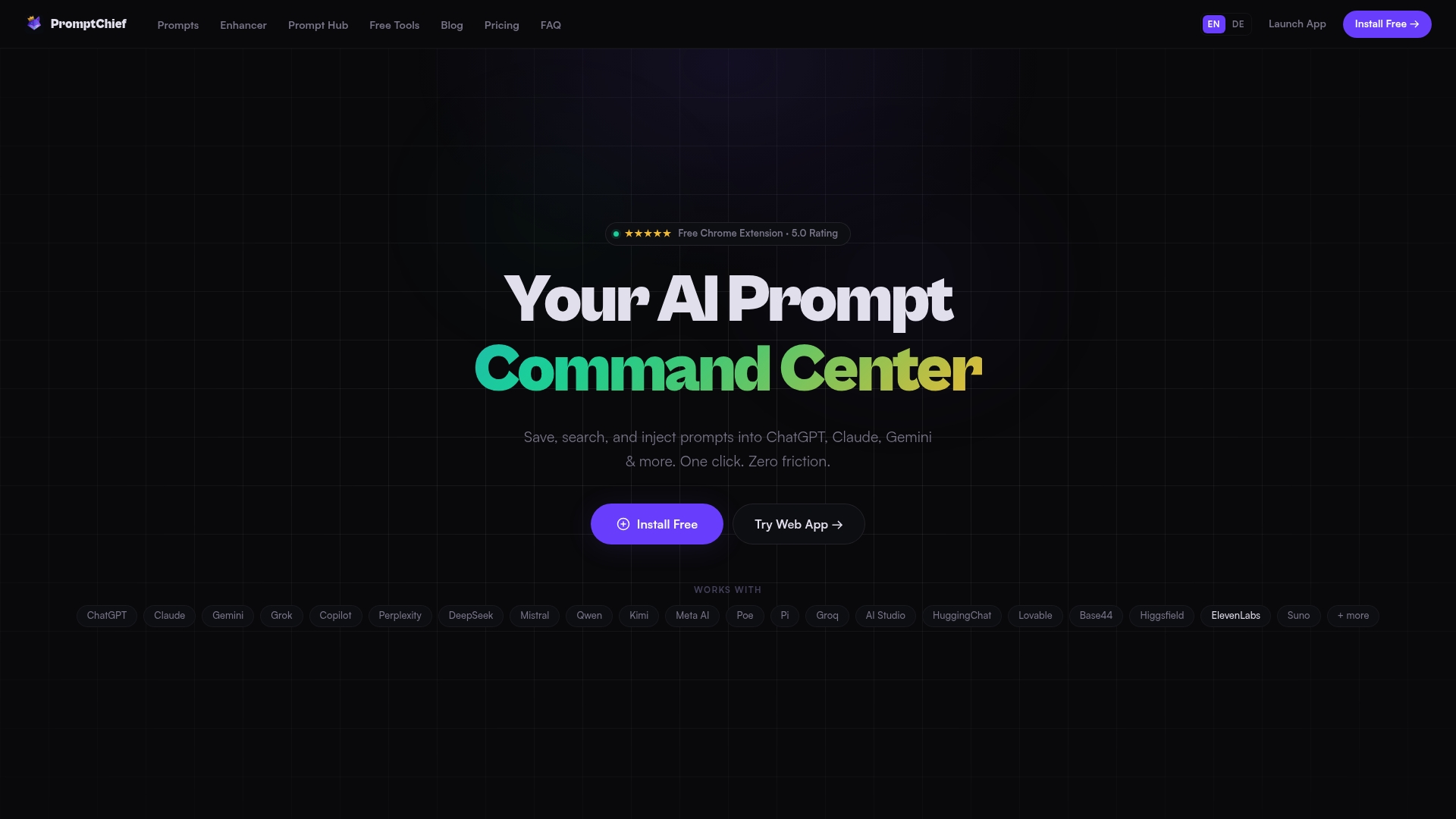
- Save, search, and inject prompts across multiple AI platforms from one synced library.
- Organize with folders, tags, placeholders, and multi-step prompt chains.
- Pull from a community Hub of ready-made prompts as a starting point.
- Share a workspace with a team when your prompt library grows.
Starting on the Free plan costs nothing, and creating one recovery export right away means you're covered even before deciding whether to upgrade to Plus or Pro.
FAQ
How do I sync data across multiple devices?
Sign into the same account on every device and confirm the app or extension has sync enabled, since this handles most core data like chat history automatically. For anything that doesn't sync natively, such as a prompt library, use a dedicated cloud tool or a synced cloud folder as a workaround.
Why isn't ChatGPT syncing between devices?
Chat history usually syncs through your OpenAI account, but saved items tied to a browser extension or local storage won't move with it. OpenAI's troubleshooting resources recommend checking your network, trying incognito mode, and confirming you're on the same account before assuming something is broken.
How do I get all my Apple devices to sync with each other?
Apple device sync for apps and subscriptions generally depends on being signed into the same Apple ID across devices, as described in OpenAI's iOS app FAQ for subscription portability specifically. App-level data, including saved prompts in a third-party extension, still depends on that app's own sync system rather than Apple's account layer.
How can I sync Claude Code projects across devices?
Claude's connectors run through cloud infrastructure, so project content tied to a connector generally follows your account, but a custom connector needs to be publicly reachable to work from a new device. Anthropic's setup guide notes that a server behind a private firewall will fail even with correct configuration otherwise.
Does switching AI models break my saved prompts?
A prompt tuned for one model can lose some effectiveness on another, a pattern known as model drifting. PromptBridge's research shows that a short calibration step after switching models helps preserve the prompt's original performance.
Sources
- Troubleshooting apps in ChatGPT | OpenAI Help Center
- Use connectors to extend Claude's capabilities | Anthropic Help Center
- PromptBridge: training-free cross-model prompt adaptation (arXiv)