
If you want one answer: install a cloud-synced prompt manager with a Chrome extension that works across ChatGPT, Claude, Gemini, and other models. Promptchief does exactly that. It saves, searches, and injects prompts directly into any LLM interface, syncs everything to the cloud, and keeps your prompt library intact no matter which device you're on.
Here's why that matters before you install anything:
- Scattered prompts kill productivity. Copy-pasting the same prompt from a note app every morning is context loss in action.
- Multi-LLM workflows are the norm now. You might draft in ChatGPT, refine in Claude, and generate images with another model. One extension should handle all of it.
- Cloud sync is the structural fix. Browser-local storage disappears when caches clear. A cloud-backed library doesn't.
Table of Contents
- What kinds of ChatGPT/AI Chrome extensions are there?
- How do you choose the right AI browser extension?
- What permissions do AI Chrome extensions actually need, and what are the risks?
- How do you install and set up a cloud-synced prompt manager?
- Why Promptchief works for multi-LLM prompt management
- How does cross-device sync work, and what do you do when it breaks?
- Key Takeaways
- The case for one prompt manager over many extensions
- Promptchief is the prompt manager built for this workflow
- Helpful resources for further reading
What kinds of ChatGPT/AI Chrome extensions are there?
AI Chrome extensions fall into three distinct categories, and knowing which type you need saves you from installing four tools when one would do.
Sidebar assistants open a chat panel next to whatever page you're reading. The official ChatGPT Chrome extension works this way: it understands context across your tabs, can answer questions about the page you're on, and lets you research without leaving your browser. Some sidebar tools also surface source-cited answers alongside web content, which is useful for fact-checking on the fly.
Automation agents go further. Claude's Chrome extension, for example, can navigate pages, fill forms, extract data, and run multi-step browser workflows across multiple tabs. These are the right choice when you need repeatable playbooks: scrape a table, paste it into Notion, send a summary to Sheets. Powerful, but they require broader permissions and more careful setup.
Prompt managers are the third type, and the most underrated. They don't chat or automate. They store, organize, and inject your prompts into any AI interface on demand. That distinction matters for anyone who uses AI seriously across multiple models.
- Sidebar assistants: best for in-context research and quick Q&A while browsing.
- Automation agents: best for no-code workflows and repetitive multi-tab tasks.
- Prompt managers: best for maintaining a reusable library across ChatGPT, Claude, Gemini, and more.
Power users increasingly prefer tools that support multiple AI platforms in a single interface rather than juggling separate single-model extensions.
Pro Tip: Productivity analysts recommend keeping no more than 2–3 active AI extensions to avoid browser slowdown and decision fatigue. If you find yourself toggling between five different tools, consolidate into a single prompt manager that handles organization and injection across all your models.

How do you choose the right AI browser extension?
Cloud synchronization paired with reliable prompt injection across models is the single criterion that separates a useful extension from a frustrating one. Everything else is secondary.
| Dimension | What to evaluate |
|---|---|
| Extension type | Sidebar, agent, or prompt manager — match to your primary use case |
| Multi-LLM support | Does it work with ChatGPT, Claude, Gemini, and others simultaneously? |
| Cloud sync | Are prompts stored server-side and accessible on any device? |
| Prompt injection | Can it insert saved prompts directly into the LLM input field? |
| Permissions required | Minimal vs. broad site access — check what it actually needs |
| Team/workspace features | Shared libraries, admin controls, SSO for org-wide rollout |
| Pricing model | Free tier limits, paid tiers, per-seat or credit-based billing |
For a deeper look at how these dimensions compare across tools, the best AI prompt managers breakdown covers feature-by-feature differences worth reading before you commit.
Trust signals to verify before installing:
- Clear privacy policy with explicit data-handling language
- Explanation of each permission the extension requests and why
- Regular update cadence (check the Chrome Web Store version history)
- User ratings and recent reviews, not just the aggregate star count
- Admin controls or SSO options if you're deploying across a team
On pricing: most reputable AI extensions use a freemium model. Free tiers cover light individual use; paid plans unlock higher usage limits, advanced features like multi-step prompt chains, or team seats. For solo users, a free tier is usually enough to evaluate fit. Teams should budget for per-seat pricing once they want shared libraries and admin controls.
What permissions do AI Chrome extensions actually need, and what are the risks?
Granting permissions to a browser extension is a real security decision. Most AI extensions that interact with page content will request "read and change all your data on the websites you visit" — a broad permission that enables form filling, content injection, and in-page summarization. That's not inherently dangerous, but it deserves scrutiny.
Agentic extensions like Claude's carry a larger attack surface. When an extension can navigate, click, and fill forms autonomously, it becomes a target for prompt injection attacks: hidden instructions embedded in a webpage that attempt to redirect the extension's actions. Claude's own documentation flags this risk and recommends starting with trusted sites before expanding permissions.
Risk mitigation checklist:
- Read the privacy policy before installing, specifically the sections on data logging and token handling.
- Use the extension's allowlist to restrict it to approved domains only.
- Avoid granting "access on all sites" unless the extension genuinely needs it.
- Run browser-based AI tools in an isolated Chrome profile for sensitive work.
- For corporate deployments, use admin controls to enable allowlist/blocklist rules that prevent the extension from touching internal tools.
Pro Tip: Validate an extension's privacy claims by checking its Chrome Web Store update history. Frequent, documented updates signal active maintenance. Then test the extension in a separate Chrome profile with a throwaway account before granting it access to your primary workspace.
How do you install and set up a cloud-synced prompt manager?
Setup takes under ten minutes if you follow the steps in order.
- Go to the Chrome Web Store and install the Promptchief extension.
- Sign in or create a free account at promptchief.tech.
- Connect your target LLMs: open ChatGPT, Claude, or Gemini in Chrome and confirm the extension sidebar loads on each.
- Grant only the permissions the extension requests during setup — skip any optional broad-access prompts.
- Import an existing prompt file or create your first prompt in the Promptchief dashboard. The AI prompt library has 100+ free templates to start with.
- Test prompt injection on a non-critical page: open ChatGPT, trigger a saved prompt from the sidebar, and confirm it populates the input field correctly.
Post-install safety checklist:
- Verify which sites the extension has access to in Chrome Settings > Extensions.
- Set an allowlist to approved domains (your primary LLM interfaces).
- Run one test injection with a harmless prompt before using it on production work.
- Open the extension on a second device and confirm your prompts appear — that's your cloud sync confirmation.
Troubleshooting quick fixes: If the sidebar doesn't load, try disabling other extensions one at a time to find a conflict. Auth issues usually resolve by signing out and back in. Profile mismatches (extension logged into one account, browser into another) are the most common cause of sync failures.
Why Promptchief works for multi-LLM prompt management
Promptchief's core advantage is that it treats your prompt library as a single source of truth, not a browser-local cache that disappears when you clear your history. Cloud-synced prompt libraries preserve prompts across devices and prevent IP loss when local storage is wiped.
Key features:
- Works with 27+ AI platforms including ChatGPT, Claude, Gemini, Copilot, Grok, and more.
- Fuzzy search so you can find the right prompt even with a partial or misspelled query.
- Magic placeholders that let you customize a saved prompt at injection time without editing the template.
- Multi-step prompt chains for complex recurring outputs like briefs, code reviews, or email sequences.
- AI prompt rewriting in 9 styles, so you can adapt a prompt's tone without starting from scratch.
- Team workspace with shared libraries, access controls, and seat-based billing.
Pricing follows a freemium model: Free, Plus, and Pro tiers, with team seats available separately. The free tier is a real starting point, not a crippled demo. Check the current plan limits before deciding which tier fits your usage.
Trust signals worth noting: Promptchief publishes a clear privacy policy, explains each permission the extension requests, and provides admin controls for team deployments. User ratings consistently cite the injection speed and cross-device reliability as the standout features.
How does cross-device sync work, and what do you do when it breaks?
Cloud sync in a prompt manager works by storing your library server-side and pulling it down to whichever device opens the extension. Unlike browser-local storage, the prompts aren't tied to a single machine's cache. That means clearing Chrome's data, switching laptops, or opening the web app on a tablet all show the same library.
The most common sync failure is a session mismatch: the extension on one device is logged into a different account than the web app on another. Fix it by signing out of both, clearing extension storage in Chrome settings, and signing back in with the same credentials everywhere.
If prompts appear on the web app but not in the extension sidebar, a forced extension reload (disable, re-enable in Chrome's extension manager) usually resolves it. Persistent issues after that point to a permissions problem: the extension may have lost its authentication token, which a fresh sign-in fixes.
For teams, sync conflicts can arise when two members edit the same shared prompt simultaneously. Most prompt managers handle this with last-write-wins logic. If version control matters for your team, use Promptchief's workspace features to assign edit permissions rather than leaving shared prompts open to all members.
Key Takeaways
A cloud-synced prompt manager with multi-LLM injection support is the most durable solution for AI power users who work across devices and models.
| Point | Details |
|---|---|
| Choose cloud sync + multi-LLM | Pick an extension that stores prompts server-side and works across ChatGPT, Claude, and Gemini. |
| Verify permissions before installing | Check what site access the extension requests and restrict it to approved domains via allowlist. |
| Test setup before relying on it | Run a harmless injection test and confirm sync on a second device before using it on real work. |
| Start free, scale as needed | Most freemium tiers cover solo use; add team seats when you need shared libraries and admin controls. |
| Promptchief as your prompt hub | Promptchief supports 27+ AI platforms with cloud sync, fuzzy search, and multi-step prompt chains. |
The case for one prompt manager over many extensions
The conventional wisdom says "use the best tool for each job." In AI browser tooling, that advice creates a mess. Four extensions competing for the same input field, overlapping permissions, and a prompt library split across three different storage systems — that's not a workflow, it's a liability.
The smarter setup: one prompt manager as your primary extension, one automation agent for tasks that genuinely need agentic control, and a writing polish tool like Grammarly for output quality. That's it. The prompt manager handles the intellectual property: the prompts you've refined over months, the multi-step chains that produce consistent outputs, the templates your team relies on. Losing those to a cache clear is the kind of mistake you only make once.
For recurring outputs — weekly briefs, code review summaries, client email drafts — saved multi-step prompt chains are the real productivity lever. You trigger a chain from the sidebar, the prompts inject in sequence, and you get a consistent structure every time without rebuilding it from memory. Pair that with workspace seats and allowlists for team adoption, and you have something that actually scales.
The governance piece gets skipped too often. If you're deploying AI extensions across a team, set the allowlist before anyone starts using it in production. Restricting the extension to approved LLM domains takes five minutes and prevents a category of security problems that are genuinely hard to untangle after the fact.
Promptchief is the prompt manager built for this workflow
Every extension type covered in this article solves a different problem. Sidebar assistants answer questions. Agents automate tasks. But neither one keeps your best prompts organized, synced, and ready to inject across every model you use. That's the gap Promptchief fills.
The free tier gets you cloud sync, prompt injection across 27+ AI platforms, and access to the community prompt library. No credit card required to start. If you work with a team, the workspace features and per-seat billing scale without forcing you into an enterprise contract.
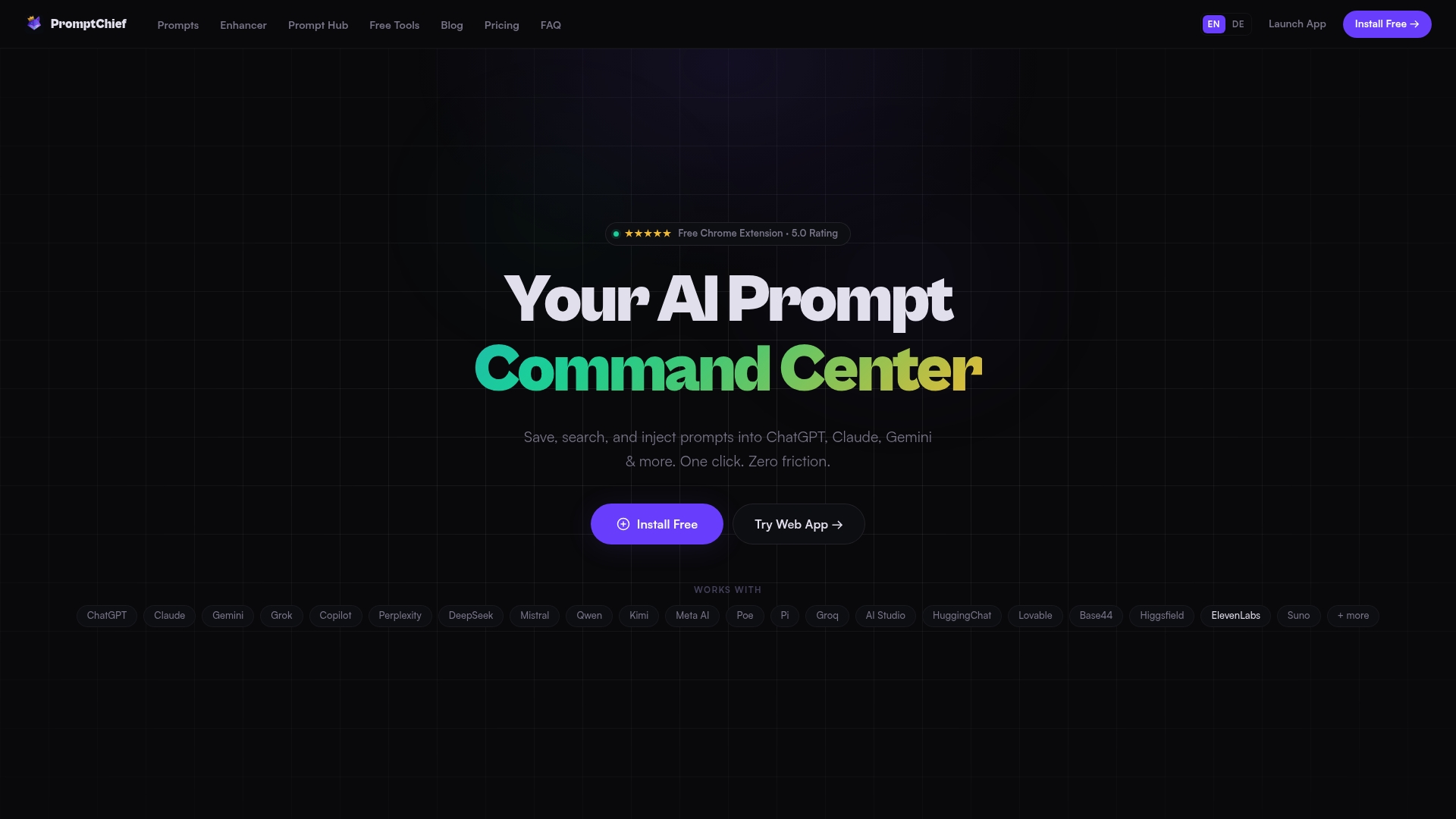
Start by importing a prompt file or building your first multi-step prompt chain and testing injection on ChatGPT or Claude. Once you've confirmed sync across two devices, you'll understand why power users stop relying on browser-local storage. Try Promptchief's free tier at promptchief.tech and see how fast a clean prompt library changes your daily AI output.
Helpful resources for further reading
- ChatGPT Chrome extension overview — Official Chrome Web Store listing; covers what the extension can do, permissions required, and how to get started.
- Claude for Chrome — Anthropic's official extension page with setup steps, safety guidance on prompt injection risks, and admin controls for team deployments.
- Chrome Web Store AI-powered extensions — Google's curated collection of generative AI extensions; useful for browsing vetted options by category.
- Promptchief pricing and plans — Current Free, Plus, and Pro plan details including team seat pricing and AI credit limits.
- Prompt management workflow guide — Detailed guidance on organizing, tagging, and sharing prompts for power users who want a repeatable system.
- AI prompt chains explained — How multi-step prompt chains work and practical examples for code review, content briefs, and email sequences.