
The fastest way to save prompts to cloud is a dedicated cloud-synced prompt manager for anyone working across more than one device, and a cloud drive with structured templates for occasional or single-device use. Pick the prompt manager if you switch between a laptop, phone, or browser extension and need instant access; pick the folder-and-template route if you rarely leave one machine and privacy concerns outweigh convenience.
TL;DR:
- Using a dedicated prompt manager offers instant, cross-device access and built-in tagging, making prompt retrieval faster and more organized than manual file searches.
- Cloud drive storage works well for users already embedded in ecosystems like Google or iCloud, but requires manual search and lacks automatic synchronization.
- Tagging prompts with purpose, target model, and example outputs improves discoverability and facilitates reuse, especially when libraries grow beyond 30 prompts.
- Prompts should be version-controlled with manifest and lock files to prevent drift across devices and team members, ensuring consistency in production environments.
- Cloud-synced tools like Promptchief automatically update prompts across devices and support rich features such as fuzzy search and templates, streamlining prompt management at scale.
Table of Contents
- What Are the Best Ways to Save Prompts to the Cloud?
- How Do You Save Prompts to the Cloud Step by Step?
- How Should You Organize a Growing Prompt Library?
- How Do You Stop Prompt Drift Across Devices and Team Members?
- How Do You Reuse the Same Prompt Across Different AI Tools?
- Cloud Sync or Local-First: Which Fits Your Situation?
- Try a Cloud-Synced Prompt Manager Built for This
- Sources
- FAQ
What Are the Best Ways to Save Prompts to the Cloud?
Four methods cover almost every use case, and each one trades speed for control differently.
- Browser extensions: Save a prompt straight from ChatGPT, Claude, or Gemini with a click, then inject it back into any text field. Fastest for daily use, but you're tied to whichever browser has the extension installed.
- Cloud drives (Google Drive, Dropbox, iCloud): Store prompts as documents or spreadsheets with folders and tags. Works for anyone already living in that ecosystem, but search and reuse are manual.
- Note apps (Notion, Obsidian, Apple Notes): Good for prompts mixed with project notes and context. Slower to retrieve mid-conversation, better for research-heavy workflows.
- Dedicated prompt managers: Purpose-built for save, search, and inject across 27+ AI platforms, with tagging and templates baked in. Best fit for anyone treating prompts as a working asset rather than scratch notes.
Writers and marketers tend to gravitate toward extensions and dedicated managers because speed matters mid-task. Developers and technical teams lean toward file-based or git-backed methods, which the next section covers in detail.
How Do You Save Prompts to the Cloud Step by Step?
The steps differ by method, but the goal is always the same: get the prompt off your clipboard and into a place you can find it again in ten seconds, from any device.
Browser extension flow:
- Highlight the prompt text in ChatGPT, Claude, or wherever you wrote it.
- Save it through the extension's capture button, adding a tag or category on the spot.
- Later, open the extension in a new tab and inject the saved prompt directly into the input field instead of retyping or pasting.
Cloud drive or Notion flow:
- Create a template document with fields for the prompt text, purpose, target model, and an example output.
- Fill in the metadata every time you save a new prompt, not just the prompt itself.
- Share the folder or page with teammates using view or edit permissions, depending on who needs to touch it.
iCloud or local-first flow:
- Turn on iCloud sync (or the equivalent) in your notes or prompt app's settings.
- Export a backup file periodically as a safety net, since local-first tools depend on device availability rather than a central server. This pattern keeps prompts off third-party servers while still reaching every device tied to your account, according to PromptPaste's approach to private prompt libraries.
- If two devices edit the same prompt before syncing, resolve the conflict manually. Most local-first tools flag the collision instead of silently overwriting.
Developer flow:
- Create a
Promptsfilelisting each prompt pack your project depends on, similar to a package manifest. - Run a sync tool to generate a lock file that pins exact versions, the same pattern prompt-sync uses to install and version-lock prompt packs from Git repositories.
- Commit both files to your repo so any teammate (or CI pipeline) can reproduce the exact prompt set with one command.
Vendor tools have started building save features directly into their interfaces, too. Microsoft Copilot and Google's Gemini Enterprise Agent Platform both offer built-in bookmark or share flows, which work fine for casual use but rarely scale past a handful of saved items.
Pro Tip: Add a "last tested" date to every saved prompt's metadata. Models get updated quietly, and a prompt that worked perfectly in March can drift by June without any change on your end.
How Should You Organize a Growing Prompt Library?
Tags beat folders once your library passes about 30 prompts, because a single prompt often serves multiple purposes and folders force you to pick just one home for it. Folders still work well for a small, stable set organized by project or client.
Every saved prompt benefits from a short block of metadata alongside the text itself:
- Purpose: one line describing what the prompt produces (blog outline, code review, email draft).
- Target model: which AI platform or model it's tuned for, since instruction style varies between them.
- Token estimate: a rough length so you know if it fits a shorter context window before pasting.
- Example output: a snippet showing what a good result looks like, useful for onboarding teammates fast.
Templates add another layer of reuse. Instead of saving a finished prompt, save the skeleton with placeholders like {topic} or {tone}, then fill in the blanks per use. Name files by function first, not date: blog_outline_seo.txt retrieves faster in search than prompt_march12.txt ever will. Promptchief's own prompt organization guide walks through similar tagging patterns if you want a deeper reference.
How Do You Stop Prompt Drift Across Devices and Team Members?
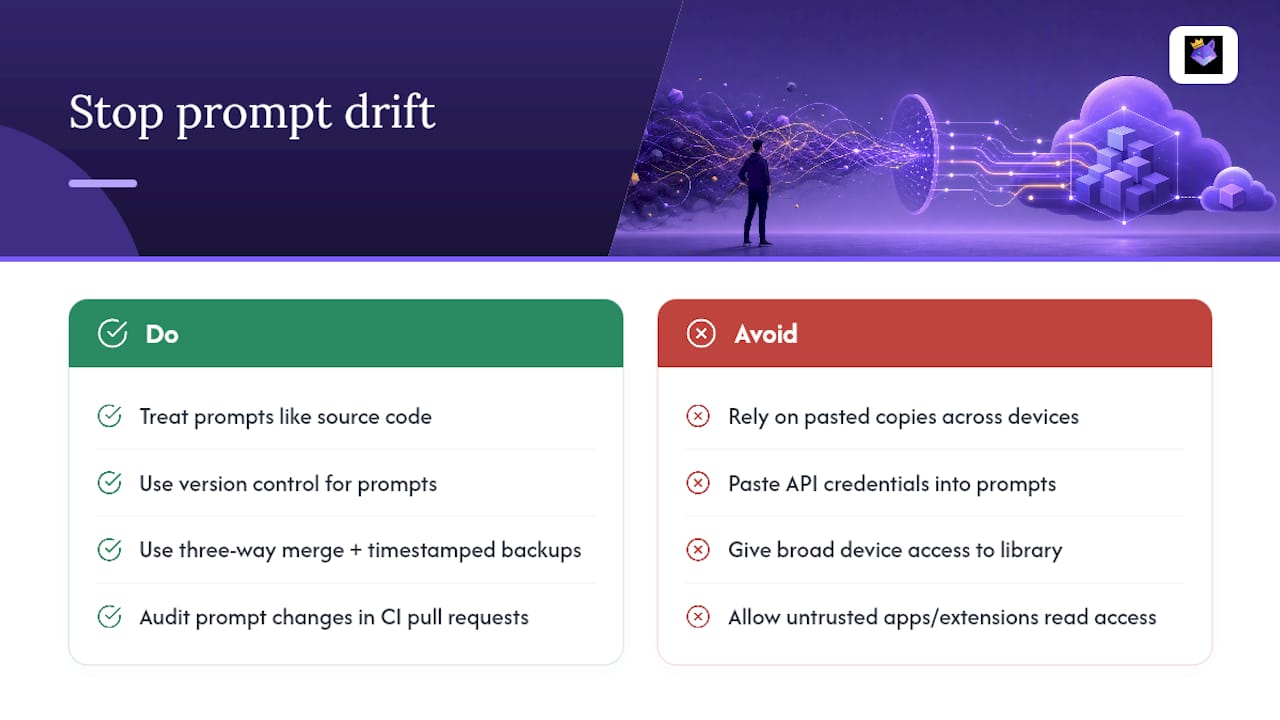
Prompt drift happens when the "same" prompt quietly diverges across devices, team members, or time, until nobody's sure which version is actually in production. Treating prompts like source code, with a manifest and a lock file, keeps every environment running the identical text instead of whatever got pasted last, a practice detailed in LaunchDarkly's guide to prompt versioning.
Version control isn't overhead for prompt libraries. It's the difference between "this prompt works" and "this prompt worked on someone's laptop in October."
Cloud-synced prompt managers commonly resolve multi-device edits with a three-way merge, comparing the local copy, the cloud copy, and the last-synced snapshot to reconcile changes without silently discarding either edit, a pattern documented in the Prompt Bank sync guide. Timestamped backups make this reliable: if a merge goes wrong, you roll back to a known-good snapshot instead of reconstructing a prompt from memory.
On the security side, allow-list which apps and browser extensions can read your prompt store, avoid tools that ask you to paste API credentials directly into the prompt text, and scope device access so a lost phone doesn't hand over your whole library, following Alhora's AI Principles for responsible AI usage. Developer teams pushing prompt packs through CI can audit changes in pull requests the same way they review code, which catches drift before it reaches production.
How Do You Reuse the Same Prompt Across Different AI Tools?
Moving a prompt from ChatGPT to Claude or Gemini isn't always copy and paste. Some tools support clipboard injection through a browser extension, which drops the full text into the active field in one click; others still require a manual paste into a chat box or an API request body.
- Copy/paste works everywhere but breaks formatting on longer prompts with numbered steps or code blocks.
- Extension injection preserves formatting and placeholders, but only works where the extension is installed.
- API calls need the prompt restructured into a system/user message split, which most chat-UI prompts weren't written for.
Before trusting a moved prompt, run it once and check three things: did the placeholders get filled correctly, did the output length match what you expected, and did the model follow the formatting instructions instead of ignoring them. Small wording tweaks, like swapping "respond in JSON" for a model that prefers explicit schema examples, often fix cross-tool failures fast. Promptchief's guide to reusing prompts across AI tools covers the adaptation patterns in more depth.
Cloud Sync or Local-First: Which Fits Your Situation?
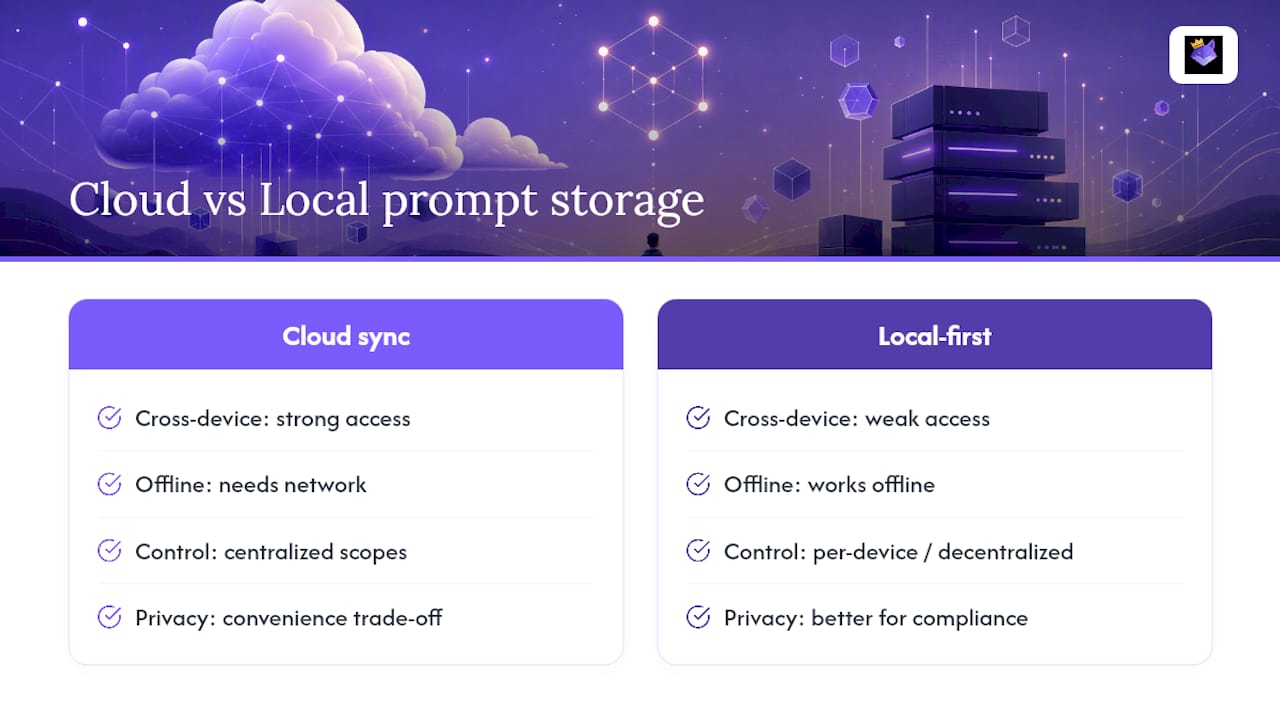
Convenience and privacy pull in opposite directions here, and neither choice is wrong.
A solo writer who works from one laptop rarely needs cloud sync at all. A power user juggling a phone, a work laptop, and a browser extension gains the most from a cloud-synced prompt manager, since retrieval speed matters more than anything else. A small team sharing prompt packs across projects should lean local-first only if compliance demands it. Otherwise, sync with proper access scopes wins on reproducibility every time.
— John
Try a Cloud-Synced Prompt Manager Built for This
Promptchief solves the exact problem this article just walked through: saving, syncing, and reusing prompts without losing track of which version is current. The Chrome extension and web app sync your library across every device automatically, so a prompt saved on your laptop shows up instantly on your phone, no export or manual backup required.
Fuzzy search finds a saved prompt in seconds instead of scrolling through folders, and fillable templates handle the placeholder pattern this article covered without any custom scripting. The Free plan costs $0 and covers the core save, search, and sync features, while Plus runs $8.11 a month and Pro adds team-ready extras at $17.39 a month for anyone who outgrows the basics. Teams that need shared workspaces and seat-based access pay $12 to $15 per seat monthly. Start on the free tier, save your ten most-used prompts, and see whether cross-device sync changes how often you're rewriting something you already wrote once.
Sources
For deeper technical detail, see LaunchDarkly's prompt versioning guide, the Prompt Bank sync guide, and the Creative Commons Attribution 4.0 license if you plan to share prompt packs publicly.
- Prompt versioning and management — LaunchDarkly blog
- prompt-sync (GitHub)
- Save your favorite prompts to use again — Microsoft Support
FAQ
Can You Save Prompts in Claude?
Claude doesn't offer a native save-to-library feature the way some vendor tools do, so most people rely on a browser extension or a dedicated prompt manager to capture and tag prompts used in Claude conversations. A cloud-synced tool like Promptchief lets you save a Claude prompt once and reuse it across other AI platforms without retyping it.
Where Are Copilot Prompts Stored?
Microsoft Copilot includes a built-in save or bookmark feature that stores favorite prompts within the product itself, accessible from a saved-prompts panel. This works well for light use, but it doesn't sync outside the Copilot ecosystem, so cross-platform users typically pair it with an external prompt manager.
How Can I Save Prompts From ChatGPT?
Copy the prompt text and paste it into a cloud drive, note app, or dedicated prompt manager with tags for purpose and model. A browser extension speeds this up by letting you save directly from the ChatGPT interface with one click, then inject the saved prompt back into any chat window later.
How Do I Save a Prompt in Gemini?
Google's Gemini Enterprise Agent Platform includes save and share flows built into the interface, letting you store a prompt and share it with teammates or stop sharing when needed, as documented in Google's own prompt-sharing docs. For prompts you want available outside Gemini too, save a copy in a cross-platform manager so it stays usable if you switch tools.
What's the Difference Between a Backup and Cloud Sync for Prompts?
A backup is a static snapshot you export manually and store somewhere safe; cloud sync updates automatically across devices in near real time using mechanisms like a three-way merge to handle conflicting edits, as described in the Prompt Bank sync guide. Most serious prompt libraries use both: sync for daily access, periodic backups for disaster recovery.