
The fastest way to make prompts discoverable and reusable is a shallow, purpose-driven folder hierarchy with consistent naming, strict version control, and instruction files placed exactly where your tools expect to find them. Limit nesting to two or three levels, pick one naming convention and stick to it, and add an instruction file at the root of any project you want an AI tool to understand automatically. The templates below make this concrete.
TL;DR:
- Using shallow folder hierarchies with consistent naming and instruction files ensures prompt discoverability and reduces repetition during prompt loading.
- Placing instruction files at the top of folder structures enables AI tools to automatically inherit context and persona information, improving response consistency.
- Organizing prompts by project, role, skill, or model depending on workflow optimizes retrieval and aligns with how tools like Copilot or Claude load instructions.
- Keeping folder names predictable using kebab-case or snake_case, along with timestamping and flat version directories, improves automation and version control.
- Regular folder maintenance, including standard documentation, auditing, and archiving, sustains prompt library usefulness and avoids clutter from duplicated or outdated files.
Table of Contents
- Why folder structure matters: treating files as context
- Choosing a high-level folder pattern that fits how you work
- Folder templates and file formats you can copy today
- Naming, versioning, and how deep to nest
- Making tools read your folders automatically
- Keeping a prompt library useful as it grows
- What I learned from watching prompt libraries fall apart
- Simple setups versus structured team setups
- How PromptChief fits into this structure
- Sources
- FAQ
Why folder structure matters: treating files as context
Context engineering is the practice of arranging what an AI model sees before it sees your actual request, and a well-built folder structure is the cheapest way to do it. Every time you paste the same background, role description, or formatting rule into a new chat, you pay a repetition tax: time lost, consistency lost, and a growing chance you forget a detail that mattered last time. A folder structure that holds your standing instructions removes that tax because the instructions load automatically instead of being retyped.
OpenAI's prompt-engineering guidance recommends putting instructions at the beginning of a prompt and separating them from context with delimiters like ### or triple quotes, because models weight early, clearly bounded instructions more reliably. A folder structure applies that same logic at the file system level: the instruction file sits at the top of the hierarchy, and everything under it inherits that context.
Tools have started reading folders this way by default:
- Copilot looks for
.github/copilot-instructions.mdat the repository root before it looks anywhere else. - Claude-based setups look for a
CLAUDE.mdfile that preloads persona and project memory. - Path-specific instruction files apply only to the folders they sit near, narrowing scope automatically.
Once you see folders as preloaded prompts rather than storage bins, every naming and nesting decision becomes a context decision.
Choosing a high-level folder pattern that fits how you work
There is no single correct top-level structure; for example, integrating an AI Assistant can influence how you group prompts by workflow or persona. The right one depends on whether you work solo, on a team, or inside a codebase that agents will read directly.
- By project: each project gets a folder with
working/,final/, andarchive/subfolders, which keeps drafts separate from prompts you trust in production. - By role or persona: prompts are grouped by the voice they produce (editor, analyst, customer support agent), which suits anyone who reuses the same persona across many tasks.
- By skill or workflow: prompts are grouped by the job they do (summarizing, code review, outreach writing) rather than who is speaking, which suits teams with repeatable processes.
- By model or tool: prompts are grouped by the platform they target, useful when the same task needs different phrasing for ChatGPT, Claude, or Gemini because each model responds to structure differently.
- Hybrid: a top level split by role or workflow, with a model-specific subfolder only where a prompt genuinely needs a different version per tool.
Tags and metadata fields become more useful than deeper folders once a library passes a few hundred prompts, since search across tags scales better than nested browsing. A public example of role, skill, and workflow style tagging in practice is visible in PromptChief's free prompt library, which groups entries by purpose rather than by tool.
Folder templates and file formats you can copy today
Three templates cover most cases: a personal library, a project or repository setup, and a versioned prompt directory for anything that changes often.
A personal library kept at ~/.prompts might look like this:
roles/for persona and system-level prompts.skills/for task-specific prompts such as summarizing or drafting.workflows/for multi-step sequences that chain several prompts together.
A project or repository template adds tool discovery on top of that structure:
.github/copilot-instructions.mdat the root for repository-wide Copilot context..github/instructions/*.instructions.mdfor rules that apply only to matching paths.CLAUDE.mdat the root for Claude-based agents that read the file system as memory.
A versioned prompt directory keeps history without cluttering the working folder, following the pattern used by open-source prompt tooling, which pairs a .prompt.md file with a .meta.json file per version:
Naming, versioning, and how deep to nest
A folder structure only pays off if the names inside it are predictable. Use kebab-case or snake_case, never spaces, since automation and agents parse file names more reliably without them, a point echoed in practitioner guidance on prompt management.
- Name prompts by function first, detail second:
email-cold-outreach-v2.prompt.md, notdraft2-final-final.md. - Timestamp working files that change daily, like
research-summary-2026-03-04.md, so the newest version sorts to the top. - Keep version directories flat,
v1/,v2/,v3/, and point alatestsymlink or a note in your standard doc at whichever one is pinned for production use.
Folder depth guidance recommends staying within two to three levels, since deeper nesting causes navigation fatigue and creates dead-end directories nobody remembers to check. Beyond that depth, tags and metadata fields do the organizing work that subfolders used to do.
Pro Tip: Prefix filenames with the workflow they belong to, like support-, sales-, or code-, so a simple text search surfaces the right family of prompts instantly.
Making tools read your folders automatically
Placement determines whether a tool ever sees your instructions at all. GitHub's documentation on custom instructions lays out the discovery order Copilot follows, and getting this right is the difference between an instruction file that works and one that sits unread.
- Repository-level files live at
.github/copilot-instructions.mdand apply to everyone working in that repo. - User-level files live under
$HOME/.copilot/and apply across every project on that machine. - Path-specific files use
applyToglob patterns, so a file scoped tosrc/api/**only loads when someone is working inside that folder.
Context generally loads in an order: role or persona first, skill or task instructions second, then the specific prompt itself, which mirrors the layered model described in practitioner writing on Claude Code's folder-as-prompt design. Getting that order wrong, for instance burying a persona instruction inside a task-specific file, means the model sees the detail late or not at all.
To test it, add a CLAUDE.md or .github/copilot-instructions.md with one clear, checkable instruction, then open a new session and see whether the tool follows it without being told. If it does not, the file is likely in the wrong location or scoped with the wrong pattern.
Keeping a prompt library useful as it grows
A folder structure degrades without upkeep, and the fix does not need to be complicated. Guidance on folder design and cleanup practice makes the case that a single lightweight standard beats an elaborate policy nobody reads.
- Write a one-page standard doc at the repository root covering naming, versioning, and archive rules, and keep it short enough that people actually read it.
- Set a recurring audit, monthly for active teams, quarterly for personal libraries, and look specifically for duplicate prompts, orphaned files nobody references, and versions that have gone stale.
- Move anything unused for a defined period into
archive/rather than deleting it, so retrieval is a matter of browsing one folder rather than searching version history. - Give new contributors a short onboarding checklist: read the standard doc, name files accordingly, and file new prompts under the right skill or workflow folder before it grows another branch.
What I learned from watching prompt libraries fall apart
Every messy prompt library I have seen started the same way: a handful of files saved to a desktop that grew into hundreds of near-duplicates within a few months. The pattern that actually holds up is the one described above, shallow folders, one naming convention, and an instruction file that loads automatically instead of relying on memory.
An approach reflecting that logic is to save prompts once, tag them by role or workflow, and make them searchable with fuzzy search rather than folder browsing alone, with multi-step prompt chains available for workflows that used to need several separate files. Cloud sync enables the structure to travel across devices instead of living in one browser profile.
— John
Simple setups versus structured team setups
Solo creators need less than they think: a flat set of folders, a search habit, and a naming convention you actually follow. Teams need more, an enforced convention and instruction files that give every repository the same starting context. Anywhere agents read the file system directly, keep instruction files small, explicit, and placed exactly where discovery rules expect them, since a missed location means the agent never sees them at all.

How PromptChief fits into this structure
Everything covered above, roles, skills, versioning, tags, still needs somewhere to live that does not depend on one machine's file system. PromptChief handles that by syncing your prompt library to the cloud, making every prompt searchable, and letting you inject a saved prompt into ChatGPT, Claude, or any of its 27+ supported platforms without copying and pasting.
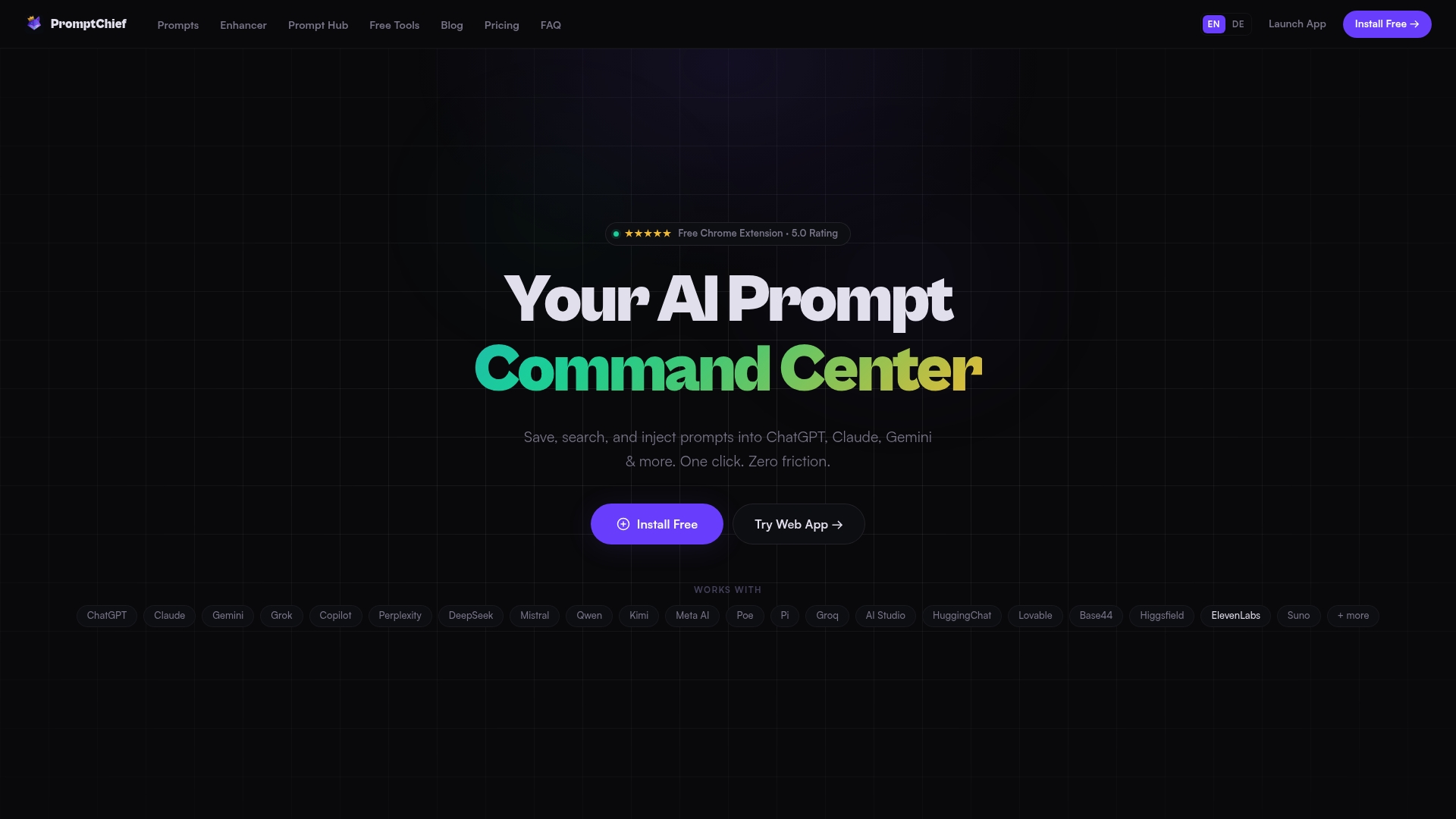
If you already keep a folder-based library, moving it into PromptChief preserves the organization while adding sync and search on top. Plans start with a free tier, and paid tiers with prompt chains and team workspaces are listed on the pricing page.
Sources
- Best practices for prompt engineering with the OpenAI API | OpenAI Help Center
- Adding custom instructions for GitHub Copilot CLI
- Claude Code folder structure: the file system is the prompt
- Prompt directory and versioning conventions (prompt-cli docs)
FAQ
How should a prompt be structured?
A well-structured prompt puts instructions first, separates them from supporting context with a delimiter like ###, and states the desired output format clearly, following the OpenAI best practices guide. Placing role or persona context in a preloaded file, rather than retyping it, keeps individual prompts shorter and more consistent.
What is the typical structure of folders for prompts?
Most working libraries use a shallow hierarchy of two to three levels, often split by role, skill, or workflow, with working, final, and archive subfolders for each project. Deeper structures tend to create navigation fatigue, according to folder depth guidance from Getsortio, which favors tags once a library grows large.
What are the 5 P's of effective prompting?
Definitions of the "5 P's" vary across sources and there is no single agreed framework. A common informal version covers purpose, persona, parameters, process, and polish, but treat it as a mnemonic rather than a fixed standard.
What is the best structure for a ChatGPT prompt?
The most reliable structure states the instruction first, adds any necessary context afterward set apart by a delimiter, and specifies the output format you want, as recommended in OpenAI's own guidance. Saving that structure as a reusable template, rather than rebuilding it each time, is where a prompt management tool that organizes prompts becomes useful.
How often should I audit my prompt folders?
Active teams benefit from a monthly check for duplicates and stale versions, while personal libraries can usually wait until a quarterly pass. The goal each time is the same: archive what is unused, fix broken naming, and confirm the standard doc still matches how people are actually filing prompts.