
The fastest path to reliable Claude outputs is a structured prompt library built around Claude-native templates. Start with Anthropic's official Prompt Library, pull a template that fits your task, fill the XML variable fields, run it in Claude or the Console, then save the refined version to a prompt manager like Promptchief.
The three sources worth bookmarking right now:
- Anthropic's official Prompt Library at claude.ai/library: maintained by the model's creators, updated with model releases, and organized by task category.
- Claude Code's prompt card library: copy-paste cards tagged by role and task, each with a "Why this works" note that explains the pattern behind the prompt.
- Community GitHub collections like agricidaniel/claude-prompts: thousands of prompts across categories with searchable structure and demo outputs.
Pro Tip: Before building your own library, spend 20 minutes in the Claude Code prompt card collection. The "Why this works" annotations teach you the underlying pattern faster than any tutorial.
Key Takeaways
The most reliable Claude outputs come from XML-structured, role-specific templates tested against edge cases and stored in a searchable, cloud-synced library.
| Point | Details |
|---|---|
| Use Claude-native templates | XML-tagged templates with four-part structure produce more consistent outputs than plain-text prompts. |
| Start from official sources | Anthropic's Prompt Library and Claude Code prompt cards are the most stable and model-current starting points. |
| Tune effort for Opus 5 | Opus 5 runs thinking by default; control token costs with the effort parameter and explicit output-length instructions. |
| Test before you store | Run baseline and edge-case tests; lock a template only after three consistent, on-format outputs. |
| Promptchief for team libraries | Promptchief's cloud sync, fuzzy search, and Chrome extension injection cover the full team prompt management workflow. |
Table of Contents
- Where can you find reliable Claude prompt libraries?
- What makes a Claude-native template different from a generic prompt?
- Copy-paste templates organized by role and task
- How do you run Claude-native templates in Claude, Claude Code, and the Console?
- How do model differences affect your templates?
- How do you test and iterate templates until they are production-ready?
- What integration patterns work for Claude prompts in real pipelines?
- How should teams organize, store, and search a Claude prompt library?
- Which source should you use for each situation?
- What teams actually learn when scaling Claude templates
- Promptchief keeps your Claude templates organized and ready to inject
- Sources
- FAQ
Where can you find reliable Claude prompt libraries?
The quality gap between prompt sources is real. Anthropic's own resources stay current with model behavior; community repos vary widely. Here is how to pick the right starting point.
Official sources (highest stability):
- Anthropic's Prompt Library (claude.ai/library): organized by task, regularly updated, and written specifically for Claude's behavior. The authoritative baseline for any claude prompt library you build.
- Claude Code prompt cards: copy-paste cards tagged by task and role, with "Why this works" explanations that show the prompt engineering technique behind each card. Ideal for developers who want to understand the pattern, not just copy the output.
- Anthropic Console prompt generator: generates production-ready templates with XML or handlebars variables and example inputs/outputs built in. The Console's prompt generator is the fastest way to produce a structured template for a new task.
Community and curated sources:
- agricidaniel/claude-prompts on GitHub: a large searchable collection with demos pairing prompts with actual Claude outputs. Useful for debugging and reproducing expected behavior.
- franmastromarino/claude-prompt-library on GitHub: focused on developer workflows, with terminal commands and autocomplete integration for saved prompts.
- Using Claude's template library (Usingclaude): curated, role-organized templates that follow the four-part structure Anthropic recommends. Good for non-developers who want ready-to-use Claude AI prompts without digging through GitHub.
When to prefer official over community:
Use official Anthropic assets when you need model-specific guidance (especially for Opus 5 or Sonnet), when stability matters for production workflows, or when you are onboarding a team. Community repos shine for volume, niche tasks, and seeing real output examples. The Prompt engineering techniques page covers model-specific behavior differences that community repos often miss.
Pro Tip: Pin the Claude Code prompt card page in your browser. It is the one official resource that combines copy-paste convenience with pattern explanation in a single view.
What makes a Claude-native template different from a generic prompt?
A Claude-native template uses XML-style tags to separate the parts of a prompt so Claude can parse each section without ambiguity. Anthropic's prompting best practices recommend structuring every template around four components: role/context, task definition, input variables, and output format. That structure is what separates a reusable template from a one-off question.
The four-part template structure
- Role/context (
<role>or<context>): tells Claude who it is and what background knowledge applies. "You are a senior software engineer reviewing Python code for a fintech startup." - Task definition (
<task>): the specific instruction. "Review the function below for security vulnerabilities and suggest fixes." - Input variables (
<input>or{{variable}}): the placeholder the user fills before running.{{code_snippet}}or<code>{{paste_code_here}}</code>. - Output format (
<output_format>): exact shape of the response. "Return a numbered list of issues, each with: severity (High/Medium/Low), description, and a corrected code snippet."
A short annotated example:
<role>You are a senior Python engineer specializing in security review.</role>

<task>
Review the function below for security vulnerabilities.
For each issue found, provide: severity, description, and a corrected snippet.
</task>

<input>
{{paste_your_function_here}}
</input>

<output_format>
Numbered list. Format each item as:
1. [Severity] — [Issue description]
   Fixed code: ```python ... ```
</output_format>
Expected output shape: a numbered list of issues with severity labels and corrected code blocks. If you paste a clean function, Claude returns "No issues found" with a brief explanation.
How to mark variables and set defaults
Use double curly braces ({{variable_name}}) for fields the user replaces before running. For optional fields, add a default inside the tag: {{tone | default: professional}}. Always include one filled-in example inside the template itself so anyone picking it up later knows what a valid input looks like. That single example cuts onboarding time significantly when sharing templates across a team.
The turn-a-prompt-into-a-template guide walks through converting a one-off Claude AI prompt into a reusable structure with proper variable marking.
Copy-paste templates organized by role and task
Using Claude's template library organizes ready-to-use templates by job role and task, following the four-part structure above. The templates below follow the same pattern and are ready to paste directly into Claude or the Console.
Developer templates
Code review (production-ready):
<role>Senior {{language}} engineer, security and performance focus.</role>
<task>Review the function below. Flag bugs, security issues, and performance problems. Suggest fixes.</task>
<input>{{paste_function}}</input>
<output_format>Numbered list: [Severity] — [Issue] — [Fix]. End with an overall risk rating.</output_format>
Replace {{language}} and {{paste_function}}. Output: numbered issue list with severity and fix.
Error diagnosis (quick test):
<role>Debugging assistant for {{stack}}.</role>
<task>Diagnose the error below. Explain the root cause in plain English, then give the fix.</task>
<input>Error: {{error_message}}
Context: {{relevant_code}}</input>
<output_format>Root cause (1–2 sentences). Fix (code snippet). Prevention tip (1 sentence).</output_format>
Best for quick experiments. Replace {{stack}} with your tech stack (e.g., "Node.js/Express").
Marketer templates
Campaign brief:
<role>Senior marketing strategist.</role>
<task>Write a campaign brief for the product below targeting {{audience}}.</task>
<input>Product: {{product_description}}
Goal: {{campaign_goal}}
Budget tier: {{budget}}</input>
<output_format>Sections: Objective, Target Audience, Key Message, Channels, Success Metrics. Max 400 words.</output_format>
Email draft:
<role>Email copywriter, {{brand_voice}} tone.</role>
<task>Write a {{email_type}} email for {{product_or_offer}}.</task>
<input>Audience: {{audience_segment}}
Key benefit: {{benefit}}
CTA: {{desired_action}}</input>
<output_format>Subject line + preview text + body (150–200 words) + CTA button text.</output_format>
Writer templates
Article outline:
<role>Editorial strategist for {{publication_type}}.</role>
<task>Create a detailed article outline for the topic below. Include H2s, H3s, and a one-sentence summary per section.</task>
<input>Topic: {{topic}}
Audience: {{audience}}
Target word count: {{word_count}}</input>
<output_format>H1 title + intro hook (2 sentences) + H2/H3 outline with section summaries.</output_format>
Edit and shorten (production-ready):
<role>Copy editor, clarity and brevity focus.</role>
<task>Edit the text below to {{target_word_count}} words. Preserve the core argument. Cut filler, passive voice, and redundancy.</task>
<input>{{paste_text}}</input>
<output_format>Edited text only. No commentary unless a cut changes meaning significantly.</output_format>
Planner templates
Meeting notes to action items:
<role>Project coordinator.</role>
<task>Convert the meeting notes below into structured action items.</task>
<input>{{paste_meeting_notes}}</input>
<output_format>Table: Owner | Action | Deadline | Priority. Add a 2-sentence meeting summary above the table.</output_format>
Pro Tip: When pasting templates into Claude, preserve the XML tags exactly as written. Claude uses the tag structure to separate context from instructions. Stripping the tags turns a structured template into a flat paragraph and degrades output quality noticeably.
For a broader set of reusable templates across platforms, the AI Prompt Templates library covers cross-model patterns including ChatGPT and Gemini alongside Claude-specific formats.
How do you run Claude-native templates in Claude, Claude Code, and the Console?
The mechanics differ slightly across surfaces, but the core sequence stays the same.
Standard workflow (Claude.ai or API):
- Copy the full template, XML tags included.
- Replace every
{{variable}}placeholder with your actual input. - Set output style in
<output_format>if you want a specific length or structure. - Paste into the Claude message box and send.
- Review the output against your expected format.
- If the output drifts, add a constraint to
<output_format>or tighten the<task>instruction and re-run.
Claude Code:
Claude Code's prompt card library provides cards you can copy directly into a Claude Code session. To reference a file, use /file path/to/file.py before pasting the template. For artifacts like logs or error outputs, paste them inside the <input> block rather than as a separate message. Claude Code handles multi-file context better when the template explicitly names which files are relevant.
Anthropic Console:
The Console's prompt generator builds production-ready templates from a plain-language description. Paste your task description, click generate, and the Console returns a structured template with XML or handlebars variables already in place, plus example inputs and outputs. Use the built-in prompt improver to tighten a template you already have: paste it in, run the improver, and compare the revised version against your original.
Common pitfalls:
- Stripping XML tags when copying from a web page (check for smart-quote corruption too).
- Leaving unfilled
{{variables}}in the prompt — Claude will attempt to fill them itself, often incorrectly. - Forgetting to specify output length, which causes Opus 5 to return far more text than needed.
The Claude Prompt Improver automates the refinement step: paste a draft prompt, and it returns a tightened version with better variable structure and output constraints.
How do model differences affect your templates?
Not all Claude models behave the same way with identical templates. Prompting Claude Opus 5 notes that Opus 5 runs with thinking enabled by default, produces longer default responses, and can spawn subagents autonomously. That means a template tuned for Sonnet will often over-generate on Opus 5 without explicit length and scope constraints.
Opus 5 adjustments:
- Add
<output_length>max 300 words</output_length>or equivalent to every template. - Explicitly scope subagent behavior: "Do not spawn additional tasks. Complete this in a single response."
- Use the
effortparameter to control thinking volume. Reducing effort lowers token cost without disabling thinking entirely — a better trade-off than turning thinking off. - Expect higher quality on complex reasoning tasks; the verbosity is a side effect of deeper processing, not noise.
Sonnet and Fable:
Sonnet is the practical default for most production templates. It balances speed, cost, and quality well for structured tasks like code review, email drafts, and outlines. Fable is optimized for creative and narrative tasks; its default verbosity is lower than Opus 5, so length constraints matter less. For either model, the prompt engineering techniques page covers model-specific behavior differences worth reviewing before deploying templates at scale.
Effort and token cost:
The effort parameter controls how much thinking Claude does before responding. High effort on a simple formatting task wastes tokens. Low effort on a multi-step reasoning task produces shallow output. A practical rule: set effort to match task complexity, not model capability. Use the API Cost Calculator to estimate token costs before running high-effort templates at volume.
Pro Tip: For Opus 5, tune effort before tuning the prompt text. A well-structured template at medium effort often outperforms a heavily engineered prompt at maximum effort on straightforward tasks.
How do you test and iterate templates until they are production-ready?
Anthropic's prompting best practices treat templates as starting points, not finished scripts. The iteration loop matters as much as the initial structure.
A minimal test plan:
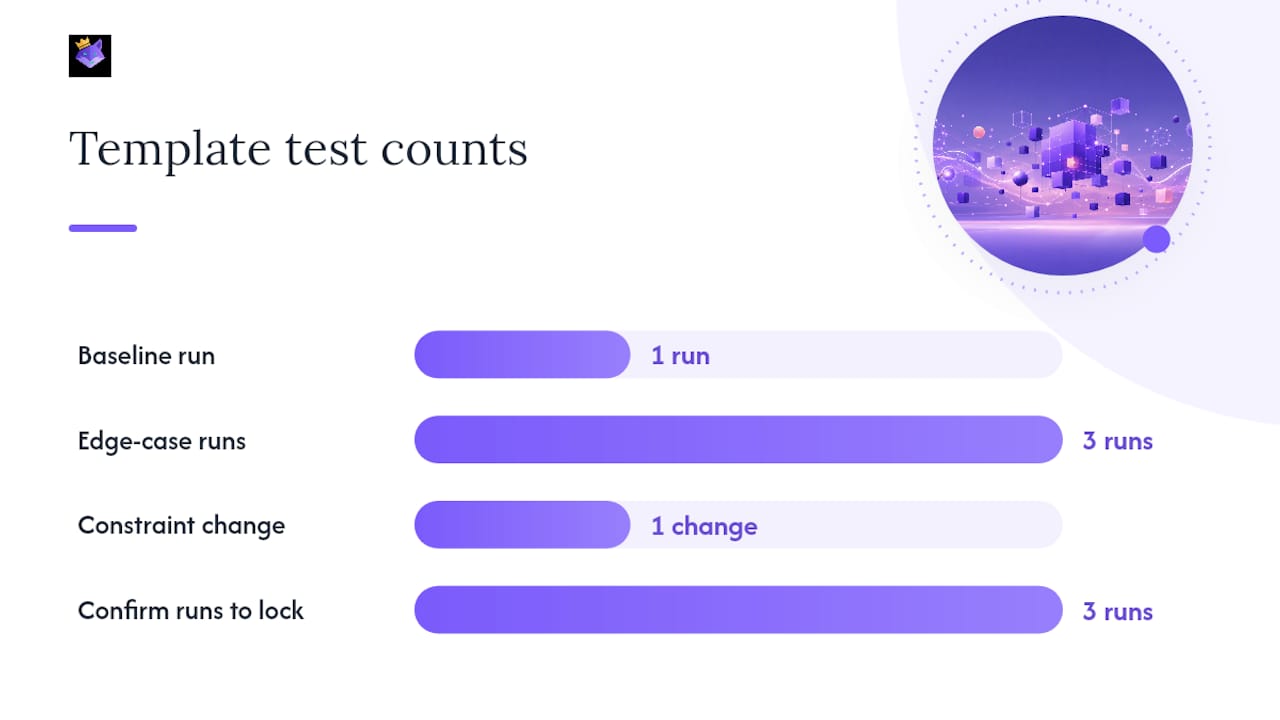
- Baseline run: paste the template with a representative input. Note output length, format adherence, and accuracy.
- Edge-case runs: test with an empty input, an unusually long input, and an off-topic input. Check that the output format holds and Claude does not hallucinate structure.
- Constraint check: if output length or tone drifts, tighten
<output_format>and re-run. One constraint change per iteration keeps the cause-and-effect clear. - Lock and annotate: once the template passes three consecutive consistent runs, mark it stable. Add a note with the model it was tested on, the effort level used, and the date.
Version control for prompt templates:
Use semantic versioning: v1.0 for the first stable release, v1.1 for constraint tweaks, v2.0 for structural changes. Store a changelog note with each version: what changed and why. A simple format works fine.
| Version | Change | Reason |
|---|---|---|
| v1.0 | Initial release | Baseline template |
| v1.1 | Added output length cap | Opus 5 over-generating |
| v2.0 | Restructured task block | Improved accuracy on edge cases |
Community repos like mikewangmax/claude-prompt-library on GitHub pair original prompts with Claude's actual outputs, which makes debugging prompt failures faster because you have a reference output to compare against.
Pro Tip: Run small experiments to tune effort and output length before locking a template. Change one variable at a time. When three runs produce consistent, on-format outputs, the template is ready for the team library.
The automated prompt engineering guide covers how to use generated templates as iteration baselines rather than starting from scratch each time.
What integration patterns work for Claude prompts in real pipelines?
Power users rarely copy-paste manually at scale. The practical integration patterns connect prompt libraries directly to development environments and workflows.
Common integration approaches:
- Chrome extension injection: a browser extension like Promptchief's lets you inject a saved template directly into a Claude session without switching tabs or opening a file. Useful for repetitive tasks where the template is fixed but the input changes daily.
- CLI prompt loading: repos like franmastromarino/claude-prompt-library include terminal commands and autocomplete for saved prompts, keeping the workflow inside the development environment.
- Claude connectors and MCP servers: Claude Code supports connectors to code repositories and MCP (Model Context Protocol) servers, letting templates reference live file artifacts rather than pasted snippets.
- Playwright for screenshots: templates that need visual context can use Playwright to capture a screenshot and pass it as an artifact inside the
<input>block. - Cloud-synced JSON libraries: storing templates as structured JSON with metadata fields (version, model, effort level, owner) makes them portable across environments and easy to load programmatically.
A standard pipeline:
Template repo → prompt manager (cloud-synced) → Claude Console or API → application output.
The automate AI workflow guide shows how to wire this pipeline so prompt injection happens automatically at the right step rather than manually before each run.
Pro Tip: Store templates as JSON with a model_tested field. When Anthropic releases a new model, you know exactly which templates need re-validation without reading through every file.
How should teams organize, store, and search a Claude prompt library?
A prompt library that lives in a shared Google Doc or a Slack channel is not a library. It is a pile. Effective organization requires a schema, metadata, and tooling that lets anyone on the team find and use a template in under 30 seconds.
Organizational schema:
Tag every template across at least four dimensions: role (developer, marketer, writer), task type (review, draft, summarize), model tested (Opus 5, Sonnet), and stability (draft, stable, deprecated). Add metadata fields: version, last-tested date, owner, sample input, sample output.
Feature checklist for prompt management tools:
- Cloud sync across devices
- Fuzzy search across template names and content
- Inject-to-session (browser extension or CLI)
- Team workspaces with access controls
- Usage analytics (which templates get used, by whom)
- Version history and changelog support
A sample team workflow:
- Author drafts a template and tests it against the baseline/edge-case plan above.
- Template passes three consistent runs and gets tagged
stable. - Author publishes to the team workspace with metadata filled in.
- Team members find it via fuzzy search, inject it into their Claude session, and log feedback.
- Owner reviews feedback quarterly and bumps the version if constraints need updating.
Promptchief's Prompt Manager for Claude aligns directly with this checklist: cloud sync across 27+ AI platforms, fuzzy search, Chrome extension for inject-to-session, team workspaces, and usage analytics. The cloud sync and Chrome extension feature page covers the technical setup for teams moving from manual copy-paste to managed injection.
Which source should you use for each situation?
Three scenarios cover most use cases:
- Quick experiment or new task: start with the Claude Code prompt card library or the Console's prompt generator. Both give you a structured template in under two minutes with no setup.
- Production template for a specific role: use Anthropic's official Prompt Library or Using Claude's role-organized collection as the base, then refine through the test plan above.
- Team library at scale: manage templates in Promptchief with cloud sync, fuzzy search, and team workspaces. Official and community templates become inputs to the library, not the library itself.
Next steps you can take right now:
- Open the Claude Code prompt card library and copy one template relevant to your current task.
- Run it with a real input, note where the output drifts, and add one constraint to
<output_format>. - Save the refined version with version
v1.0and a note on the model and effort level used.
Pro Tip: Do not build a library before you have tested templates. Collect five to ten stable, production-tested templates first. A small library of reliable prompts beats a large library of untested ones every time.
What teams actually learn when scaling Claude templates
The pattern that shows up consistently when teams move from ad-hoc Claude AI prompts to a managed library is this: the first 20 templates take the most time, and the next 80 take almost none. Once the XML structure and variable conventions are established, adding a new template is mostly a matter of swapping the <role> and <task> blocks.
The concrete tip that saves the most time: write the expected output as a literal example inside <output_format> before you write the task instruction. Working backward from the output you want forces clarity about what the task actually is. Teams that skip this step spend three iterations fixing output shape; teams that include it usually get it right on the first run.
Promptchief's team workspace feature makes this pattern scalable: one person writes and tests the template, locks the version, and publishes it. Everyone else gets a tested, annotated template they can inject directly into their Claude session without touching the underlying structure.
Promptchief keeps your Claude templates organized and ready to inject
Every template you build using the workflow above is only as useful as your ability to find and reuse it. Promptchief's prompt management platform gives Claude users a cloud-synced library that works across 27+ AI platforms, with a Chrome extension that injects saved templates directly into Claude sessions without copy-pasting.
Three features that map directly to the workflow in this article:
- Fuzzy search: find any template by keyword, tag, or partial phrase in under five seconds, even across hundreds of saved prompts.
- Inject-to-session: the Chrome extension puts your library one click away inside Claude, Claude Code, and the Console.
- Team workspaces: publish tested, versioned templates to your team with access controls and usage analytics built in.
Promptchief's free plan covers individual use. Team plans add shared workspaces and seat-level analytics. See the full feature breakdown and pricing at Promptchief's prompt management software page and start organizing your Claude templates today.
Sources
The resources below are the primary references for the guidance in this article:
- Claude prompting best practices
- Prompt library — Claude Code Docs
- Ready-to-Use Claude Prompt Templates: Practical Examples by Task | Using Claude
- Generate better prompts in the developer console | Claude by Anthropic
Prompt templates need re-validation when Anthropic releases a new model. The behavior differences between Sonnet and Opus 5 are significant enough that a template tuned for one can produce noticeably different output on the other. Keep a model_tested field in every template's metadata and schedule a review pass after major model releases.
FAQ
What is a Claude prompt library?
A Claude prompt library is a structured collection of reusable, XML-tagged prompt templates organized by role, task, and model. The best libraries follow Anthropic's four-part structure: role/context, task, input variables, and output format.
Where is the official Claude prompt library?
Anthropic maintains an official Prompt Library at claude.ai/library. Claude Code also provides a separate prompt card library with copy-paste templates and "Why this works" explanations for each card.
How do XML tags improve Claude prompts?
XML tags separate the role, task, input, and output sections of a prompt so Claude can parse each part without ambiguity. Anthropic's prompting best practices recommend this structure because it reduces conflation between background context and the actual instruction, which improves output consistency.
How should I handle Opus 5's verbosity in templates?
Add an explicit output-length instruction to every template you run on Opus 5, such as <output_length>max 300 words</output_length>. Use the effort parameter to control thinking volume rather than disabling thinking entirely, since Opus 5 runs thinking by default.
How does Promptchief help manage Claude prompt templates?
Promptchief provides cloud-synced storage, fuzzy search, and a Chrome extension that injects saved templates directly into Claude sessions. Team workspaces let you publish tested, versioned templates with access controls and usage analytics across the whole team.