
TL;DR:
- The best Claude setup combines Claude for Chrome with Promptchief for prompt management, enhancing prompt storage and injection. Developers should use Claude Code with VS Code and MCP servers for structured data and web context tasks, ensuring security with permissions. Limiting active MCPs and using dedicated profiles reduces risks while optimizing workflow efficiency.
For most developers and prompt managers, the best Claude extension setup is Claude for Chrome paired with Promptchief for prompt management. Claude for Chrome handles browser automation, multi-tab workflows, and live debugging. Promptchief handles the other half: storing, searching, and injecting your prompts across Claude and 27+ other AI platforms without copy-pasting.
Quick picks before diving in:
- Best for prompt management: Claude for Chrome + Promptchief (Chrome extension, cloud-synced prompt injection)
- Best for developer workflows: Claude Code + VS Code extension + Firecrawl MCP (VS Code 1.98.0+, MCP server)
- Security note: Anthropic warns that Claude in Chrome runs with real browser autonomy. Default to single-use permissions, not "Always allow."
TL;DR checklist:
- Install Claude for Chrome from the Chrome Web Store (paid Claude plan required)
- Check permissions — grant single-use only until you trust the workflow
- Pair with Promptchief to manage and inject prompts across sessions
Table of Contents
- What are the best Claude extensions by use-case?
- What's the difference between browser extensions, MCP servers, and VS Code plugins?
- How do you choose the right Claude extension for your team?
- Install and setup cheat sheet for Chrome, VS Code, and MCP
- What security risks come with Claude extensions, and how do you reduce them?
- How do developers and prompt managers actually use these extensions?
- What's the recommended Claude extension stack for 2026?
- Key Takeaways
- The case for treating your prompt library as infrastructure
- Promptchief makes Claude prompt management actually work
- FAQ
- Useful sources and further reading
What are the best Claude extensions by use-case?
Prompt management: Claude for Chrome plus Promptchief is the fastest path to value. Promptchief stores your canonical system prompts in the cloud, syncs them across devices, and injects them directly into Claude sessions. No more hunting through Notion docs or Slack threads for that prompt you wrote three weeks ago. For teams running cross-platform AI workflows, this pairing also covers ChatGPT, Gemini, and 24+ other platforms from one dashboard.
Browser automation and scraping: Claude for Chrome supports recorded workflows, scheduled tasks, multi-tab sessions, and console log access. Pair it with Playwright MCP for AI-driven browser testing and regression checks using plain-English instructions.
Developer workflows: Claude Code for VS Code (millions of installs, free) gives you in-editor code generation, terminal commands, and subagent support. Add Firecrawl for web context, a TypeScript LSP plugin for type-aware suggestions, and a Code Review plugin for automated PR feedback. Firecrawl identified over 11 specialized plugins for Claude Code workflows as of early 2026.

Design integration: Figma MCP and the Frontend Design MCP let Claude pull design specs directly and verify generated code against the original mock. No more screenshot-and-describe loops.
Pro Tip: OpenClaw is an open-source browser extension that adds a floating Claude chat overlay to any webpage, with context-aware actions for Gmail, Discord, and Replit. It's worth bookmarking if you want Claude available outside the claude.ai tab.
What's the difference between browser extensions, MCP servers, and VS Code plugins?
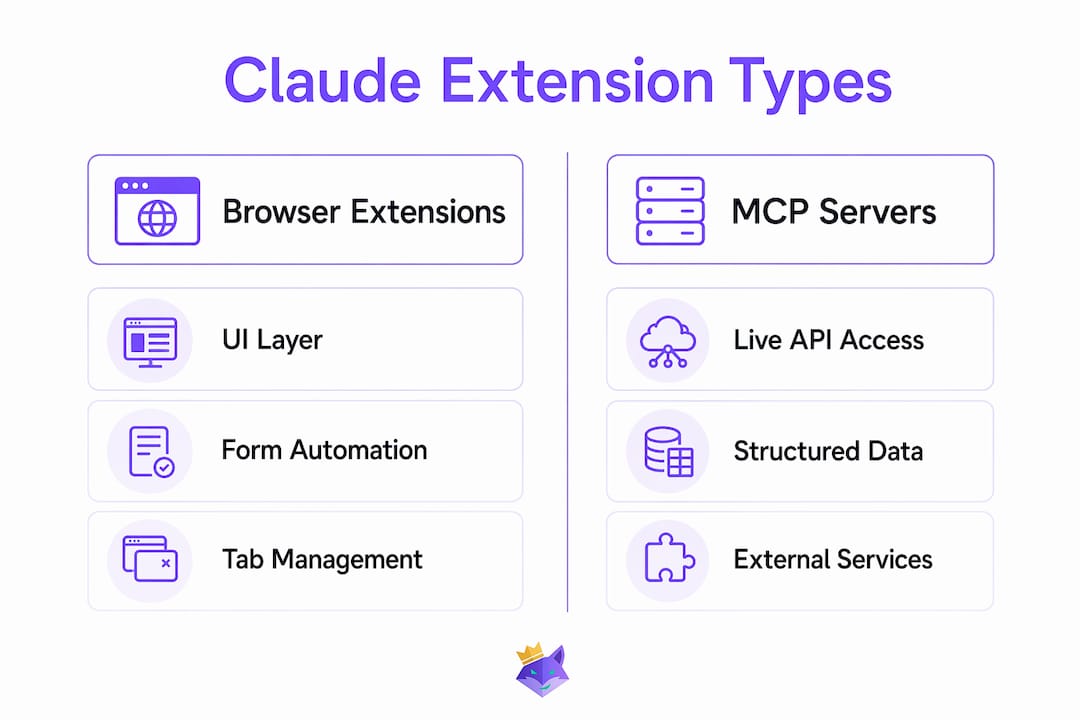
The three extension types solve different problems, and mixing them up leads to frustration.
Browser extensions (Claude for Chrome, OpenClaw) operate at the UI layer. They click buttons, fill forms, navigate tabs, and read visible page content. Setup is minimal, but the permission surface is wide — the extension can see and interact with everything your browser can.
MCP servers work differently. As Firecrawl's plugin documentation explains, extensions handle UI interaction while MCP servers grant Claude live API access and return structured data. A Firecrawl MCP server doesn't scrape a page visually — it calls Firecrawl's API and hands Claude clean, structured content. Linear MCP, Figma MCP, and similar integrations follow the same pattern. The tradeoff: each active MCP loads tool definitions into context, so running too many simultaneously burns tokens and can degrade response quality.
Claude Code / VS Code plugins live in your editor. Claude Code integrates with Chrome for CLI-driven browser testing, live console log debugging, and authenticated web app interactions using your existing login state. This is the right choice when you want code-first workflows without switching windows.
- Use Chrome extension for quick automation and non-dev teams
- Use MCP servers for reliable external data, API calls, and structured state
- Use Claude Code + VS Code for code-first, terminal-driven development
How do you choose the right Claude extension for your team?
Start with compatibility. Claude for Chrome requires a paid Claude plan. The VS Code extension requires version 1.98.0 or higher. MCP servers need a running server process and proper tool definitions configured in Claude Desktop or Claude Code.
Permissions matter more than most teams realize. The key permissions to scrutinize: read/modify page content, downloads access, and native messaging. Anthropic's support documentation recommends starting with single-use allowances on trusted sites before expanding scope. "Always allow" on a sensitive app is a meaningful risk, not a minor setting.
Match capabilities to your actual need:
- Browser control and form automation → Chrome extension
- Live API data, file uploads, external service writes → MCP server
- Console log debugging, authenticated app testing → Claude Code + Chrome
- Scheduled regression checks → Playwright MCP
On cost: enabling browser tools by default increases context consumption per session. Use Promptchief's API cost calculator to estimate token impact before rolling out to a full team. For Team and Enterprise plans, admin allowlists let you control which extensions and MCPs are available org-wide.
Pro Tip: Keep active MCPs to the minimum needed for a given workflow. Loading five MCP tool definitions when you only need one wastes context and slows responses.
Install and setup cheat sheet for Chrome, VS Code, and MCP
Chrome extension
- Subscribe to a paid Claude plan (Pro, Max, Team, or Enterprise)
- Install Claude from the Chrome Web Store
- Sign in with your Anthropic account
- On first use, grant single-use permissions only
- Test with a low-risk task on a non-production site
Claude Code for VS Code
- Install the Claude Code extension from the VS Code Marketplace (free)
- Authenticate with your Claude account
- Run
claude --chromein the terminal to enable browser-connected sessions - Use
/chromecommands for specific browser tasks; avoid enabling Chrome by default unless your workflow requires it - Check console logs in the VS Code terminal for debugging output
MCP plugin setup
- Choose your MCP server (Firecrawl, Figma MCP, Playwright MCP, Linear)
- Register the server in your Claude Desktop or Claude Code config file
- Define only the tools you need — skip unused tool definitions to protect context budget
- Test with a simple, single-step API-backed workflow before chaining calls
- For teams, configure org-level allowlists before deploying
Post-install checklist: verify extension version matches current release, confirm console logs are accessible for dev workflows, and set org allowlist/blocklist for Team/Enterprise accounts.
Pro Tip: Claude inherits your browser's login state, so automated tasks can access any site you're signed in to. Use a dedicated browser profile for automation to keep personal sessions separate.
What security risks come with Claude extensions, and how do you reduce them?
Anthropic explicitly warns that Claude in Chrome operates with real browser autonomy, and that bad actors can attempt prompt-injection attacks through page content. This isn't a theoretical risk — it's the reason Anthropic built safety classifiers into the product and still recommends reading the safety guide before broad enablement.
Concrete steps to reduce exposure:
- Default to single-use permissions. The tiered permission model exists for a reason. "Always allow" on a banking portal or admin console is a hard no.
- Avoid sensitive sites during automation. Claude shares your browser's login state and pauses for logins and CAPTCHAs, but it can still access anything you're signed into before that pause.
- Use separate browser profiles for automated tasks that touch live services. One profile for personal browsing, one for Claude automation.
- For teams: configure org-level allowlists and blocklists, disable scheduled tasks for roles that don't need them, and review recent action logs regularly.
- Enable pause/approval prompts so Claude stops and asks before taking irreversible actions.
For QA teams specifically, pairing browser-recorded artifacts with structured context in bug reports makes automated findings far more actionable than raw console output.
How do developers and prompt managers actually use these extensions?
Code review loop: Open a PR in VS Code, run Claude Code with the Code Review plugin, get inline suggestions, fix issues, re-run tests. Console logs surface in the terminal. TypeScript LSP keeps type errors from slipping through. The whole loop stays inside the editor.
Browser testing and scraping: Record a multi-tab workflow in Claude for Chrome, then schedule it as a daily check with Playwright MCP. Findings export to a report; failures trigger a notification. For AI-driven coding workflows, this pairs well with automated test generation prompts stored in Promptchief.
Design-to-code verification: Import a Figma mock via Figma MCP, generate the implementation with Claude Code, then verify the rendered output in Chrome against the original spec. Discrepancies surface immediately rather than at code review.
Prompt reuse with Promptchief: Store your canonical system prompts — code review instructions, QA checklists, analysis frameworks — in Promptchief. Inject them into any Claude session with one click. When a prompt needs updating, change it once in Promptchief and every team member gets the updated version on next use. The multi-step prompt chains feature handles sequences that span multiple Claude turns.
What's the recommended Claude extension stack for 2026?
Two configurations cover the needs of most teams.
Minimal stack (prompt managers and non-dev teams):
- Claude for Chrome (browser automation and UI tasks)
- Promptchief (prompt storage, injection, cloud sync, team workspace)
- Single-use permissions, no scheduled tasks until you've tested manually
Full developer stack:
- Claude Code + VS Code extension (in-editor workflows)
- Firecrawl MCP (web context and structured data)
- Playwright MCP (browser testing and regression checks)
- TypeScript LSP + Code Review plugin (type-aware suggestions and PR feedback)
- Promptchief (prompt orchestration, versioning, and cross-AI reuse)
Security configuration applies to both: single-use permissions by default, separate browser profiles for automation, and org allowlists for Team/Enterprise accounts. The minimal stack gets most prompt managers to value in under 30 minutes. The full developer stack takes longer to configure but eliminates most context-switching between tools.
Key Takeaways
The most effective Claude extension setup pairs Claude for Chrome with Promptchief for prompt management, layering MCP servers and VS Code plugins only where your workflow genuinely needs them.
| Point | Details |
|---|---|
| Pick the right extension type | Chrome extensions handle UI; MCP servers provide live API data; Claude Code handles in-editor dev workflows. |
| Default to single-use permissions | Anthropic recommends single-use permissions on trusted sites before expanding scope to reduce prompt-injection risk. |
| Limit active MCPs | Each active MCP loads tool definitions into context; keep only the ones your current workflow needs. |
| Use separate profiles for automation | Claude inherits your browser login state, so dedicated profiles protect personal sessions during automated tasks. |
| Promptchief for prompt management | Promptchief stores, syncs, and injects prompts across Claude and 27 other AI platforms, eliminating manual copy-pasting. |
The case for treating your prompt library as infrastructure
Most teams spend real effort configuring Claude extensions and almost none on the prompts those extensions run. That's backwards. A perfectly configured Playwright MCP running a mediocre prompt produces mediocre results on a schedule.
The extensions in this article are delivery mechanisms. What they deliver — the actual instructions Claude acts on — is where the leverage is. Teams that version-control their prompts, test variations, and share working patterns across members consistently outperform teams that treat prompts as throwaway one-liners. Promptchief's team workspace and cloud sync exist precisely because prompt management is an infrastructure problem, not a personal productivity hack.
The other thing most guides understate: browser autonomy is genuinely powerful and genuinely risky in the same breath. The single-use permission recommendation isn't excessive caution. It's the correct default until you've watched a workflow run end-to-end on a non-production environment and confirmed it does exactly what you expect. Automation that touches live services deserves the same review process as code that deploys to production.
Promptchief makes Claude prompt management actually work
Every Claude extension in this article eventually runs a prompt. Promptchief is where those prompts live. Save your best system prompts, search them by keyword with fuzzy matching, inject them into Claude (or ChatGPT, Gemini, and 24 other platforms) in one click, and share them across your team with cloud sync.
For developers building with Claude Code, the multi-step prompt chains feature handles sequences that span code review, testing, and documentation in a single workflow. For teams standardizing on Claude, the prompt manager for Claude page shows exactly how storage, injection, and versioning work in practice. Start free, upgrade when your team needs shared workspaces and higher limits.
FAQ
What Claude extensions work best for developers?
Claude Code for VS Code combined with Firecrawl MCP and Playwright MCP covers most developer needs: in-editor code generation, web context retrieval, and browser-based testing. Add a TypeScript LSP plugin for type-aware suggestions.
Do Claude extensions require a paid plan?
Claude for Chrome requires a paid Claude plan (Pro, Max, Team, or Enterprise). The Claude Code VS Code extension is free to install but uses your Claude subscription or pay-as-you-go API credits.
How do I reduce security risks with Claude browser extensions?
Start with single-use permissions on trusted sites, use a separate browser profile for automated tasks, and never grant "Always allow" on sensitive applications like banking portals or admin consoles.
What is an MCP plugin and how does it differ from a browser extension?
An MCP (Model Context Protocol) server gives Claude live API access to external services and returns structured data. A browser extension interacts with the visible UI. Use MCPs when you need reliable external data; use browser extensions for UI automation.
Can Promptchief work alongside Claude extensions?
Yes. Promptchief's Chrome extension injects saved prompts directly into Claude sessions, so it works alongside Claude for Chrome and Claude Code workflows. Prompts sync across devices and team members automatically.
Useful sources and further reading
- Claude for Chrome — product page and safety guidance (Anthropic)
- Claude for Chrome — Chrome Web Store listing
- Get started with Claude in Chrome — Help Center (Anthropic)
- Claude in Chrome permissions guide (Anthropic)
- Use Claude Code with Chrome — developer docs (Anthropic)
- Claude Code for VS Code — Visual Studio Marketplace
- Top 11 Claude Code plugins to try in 2026 (Firecrawl)
- Context engineering and MCP tradeoffs (Promptchief)