
Install a browser extension or prompt manager that supports keyboard shortcuts and placeholders, then treat every saved prompt like a small function instead of a static block of text. That single change, going from copy-pasting the same instructions over and over to injecting a reusable template with one keystroke, is what separates casual AI use from an actual workflow.
Here's how to get moving today:
- Install a prompt manager extension that works across your main AI platforms.
- Create one template with placeholders like [Topic] or [Tone] instead of hardcoded text.
- Test it with auto-send off first, so you can check the injected text before it ever reaches the model.
If you want the production-ready version of this setup without stitching together your own tools, Promptchief is built specifically for cloud-synced templates and team libraries.
Key Takeaways
Auto insert prompts works best when templates are built as functions with placeholders, tested with auto-send off, and synced through a tool designed for team-scale reuse.
| Point | Details |
|---|---|
| Pick the right delivery method | Choose hotkeys for speed, floating buttons for discoverability, or API integration for reliability at scale. |
| Build templates as functions | Use placeholders like [Topic] and [Tone] so one template adapts to many tasks. |
| Test before you trust auto-send | Run every new template with auto-send off until the injected text matches expectations exactly. |
| Scale with source control | Store large template libraries as versioned JSON or CSV files validated through CI jobs. |
| Use Promptchief for production use | Promptchief pairs cloud sync, placeholders, and team access controls for reliable auto-insert at scale. |
Table of Contents
- What Does Auto Insert Prompts Mean?
- How Is Auto Insert Actually Delivered?
- How Do You Set Up Your First Auto-Insert Template?
- How Do You Design Templates That Actually Work?
- How Do Teams Share and Manage Prompt Libraries?
- Can You Automate Prompt Libraries at Scale?
- Is Auto-Send Safe for Your Prompts?
- What Do Power Users Say About Prompt Templates?
- Why Isn't My Auto-Insert Working Right?
- How One Workflow Changed After Switching to Templates
- Why Promptchief Fits This Workflow
- Sources
What Does Auto Insert Prompts Mean?
Auto insert prompts means saving a prompt template and injecting it into an AI chat input automatically, or with one click, instead of retyping or pasting it every time. The template can include variables (often called placeholders) that you fill in at the moment of insertion, so the same skeleton produces a different result for every task.
This matters most for repeatable work: writing summaries in a consistent format, rewriting code in a specific style, comparing outputs across ChatGPT and Claude, or handing a customer support agent a pre-approved response shortcut. Developers also use it for scaffolding boilerplate prompts inside larger workflows.
- Repeatable content tasks (summaries, rewrites, translations)
- Multi-model comparisons using the same base prompt
- Developer scaffolding and code review templates
- Customer-support macros with variable customer names or issues
Skip auto-insert, or at least skip auto-send, for anything high-risk: legal language, financial figures, or messages going straight to a client without a human glance first.
How Is Auto Insert Actually Delivered?
Three delivery mechanisms cover almost every real-world setup. Browser extensions add a button directly inside the chat interface that injects saved text when clicked. Global keyboard shortcuts open a search overlay you can trigger from anywhere on the page, type a few letters, and drop the matching template straight into the input field. Direct API or plugin integrations skip the UI entirely and inject prompts programmatically, which matters for anyone building automation on top of a chat platform rather than clicking through it by hand.
Each has a real tradeoff. Hotkeys win on speed since your hands never leave the keyboard. Floating buttons win on discoverability, especially for new users who haven't memorized a shortcut yet. API integrations win on reliability across platform updates, since they don't depend on a specific button existing in a specific spot on the page.
Some tools, like OneClickPrompts, add custom buttons directly into chat inputs with local export and import for backup. Overlay-style tools such as AutoPrompt take a different approach, capturing rough text typed into any web field and refining it before injecting the polished version back in place, which cuts down on tab switching.
Pro Tip: Power users tend to gravitate toward keyboard-triggered overlays because they target retrieval and injection in under three seconds, which matters a lot once you're running dozens of prompts a day.
How Do You Set Up Your First Auto-Insert Template?
Five steps get you from zero to a working template in about five minutes.
- Install an extension or sign up for a prompt manager that supports your target AI platforms.
- Create a new template and swap hardcoded details for placeholders, like [Topic], [Audience], or [Length].
- Assign a hotkey or button so the template is one action away instead of buried in a menu.
- Test with auto-send turned off and read the injected text before anything reaches the model.
- Iterate based on how much editing you still had to do after insertion.
Before calling a template finished, run this checklist:
- Injected text matches what you expect, word for word
- Every placeholder actually appears and gets filled correctly
- Auto-send stayed off during the test, with no accidental submission
Pro Tip: Test every new template with auto-send off at least twice before trusting it live. A rushed first test is how "helpful automation" turns into an accidental message sent mid-edit.
Pro Tip: Name placeholders after what they mean in your workflow, not generic labels. [ClientName] beats [Var1] every time you come back to a template three months later.
If you'd rather start from a working library instead of writing templates from scratch, Promptchief's prompt library has ready-made examples you can adapt in minutes.
How Do You Design Templates That Actually Work?
The most useful mental shift is treating a prompt like a function: it takes inputs (goal, context, constraints) and returns a predictable kind of output. Experienced practitioners recommend this over obsessing about exact wording, since reliable prompts come from clarity about the goal, not clever phrasing. Magic placeholders like [Topic], [Tone], and [Length] are what make that function reusable instead of one-off.
Compare a weak template to a stronger one:
Before: "Write a summary of this." After: "Summarize [Source] for a [Audience] audience in [Length] with a [Tone] tone, focusing on [Key Point]."
The second version forces you to supply the missing context up front, which is exactly what a three-step workflow of goal, context, and success criteria recommends over blind copy-pasting.
Track a few numbers to know if a template is earning its place:
- Time saved per task compared to writing the prompt from scratch
- Number of follow-up edits needed before the output was usable
- How often the same template gets reused across different sessions
Templates that force you to state your goal, your context, and your constraints outperform templates optimized purely for clever wording. The clarity is doing the work, not the phrasing.
Promptchief's variable-driven templates apply this pattern directly, prompting for missing inputs at the moment of insertion.
How Do Teams Share and Manage Prompt Libraries?
Cloud sync turns a personal collection of templates into a shared library the whole team can pull from, with role-based access controlling who can edit versus just use a given prompt. Typical roles break down into owner, editor, and viewer, which keeps one person from accidentally overwriting a template that three other people rely on.
Versioning matters more than people expect here. A template that worked well in January can quietly break in June if someone edits it without review, so a lightweight approval step before changes go live saves real headaches.
- Owner, editor, and viewer roles scoped per workspace
- Version history so you can roll back a broken edit
- Admin controls to deny auto-send on shared templates
- Audit logs tracking who changed or ran which template
Promptchief's cloud sync and team features cover this exact structure, syncing libraries across devices while keeping access controlled per workspace.
Can You Automate Prompt Libraries at Scale?
Once you're managing hundreds of templates instead of a dozen, treat prompts like code. Developers who automated large-scale prompt uploads report success by storing templates in version control as JSON or CSV files, with CI jobs validating changes before they publish and batch scripts pushing updates to a prompt manager or marketplace.
- Source-controlled template files with metadata (name, placeholders, version, author)
- CI jobs that test rendering and confirm every placeholder actually resolves
- Batch upload scripts instead of manual one-by-one publishing
Academic work on automated prompt search methods shows algorithmic prompt generation exists, but most production teams still lean on deterministic, human-written templates because the outputs stay predictable. Watch for pitfalls at scale: accidental mass auto-send across sessions, inconsistent placeholder naming between templates, and rate limits when broadcasting to many chats at once.
Is Auto-Send Safe for Your Prompts?
The biggest risk with auto-insert isn't the insertion, it's what happens if auto-send fires before you've checked the text. Storing secrets or client data directly inside a template is the second most common mistake, followed by telemetry settings that quietly log prompt content, and cross-site injection risks on extensions with broad permissions.
- Disable auto-send by default and turn it on only for templates you fully trust
- Keep sensitive templates in client-only local storage instead of shared cloud folders
- Use redaction placeholders like [REDACTED] for anything that shouldn't be typed out
- Read the extension's privacy policy before granting broad page permissions
Log injection events and restrict who can edit shared templates, especially in a team workspace where one bad template can reach everyone at once.
What Do Power Users Say About Prompt Templates?
Ask anyone who's automated a real workflow and you'll hear the same thing: the wording matters less than the structure. A practitioner account on prompt design found that explicitly stating the situation, goal, and constraints, then iterating through conversation, beats hunting for one perfect phrasing every time.
Stop looking for the perfect prompt. Define what you actually want, give the model the context it needs, and state what success looks like. The rest is iteration, not magic wording.
A short checklist built from that approach:
- Define the goal in one sentence before writing anything else
- List the context the model actually needs to know
- State what a successful output looks like
- Iterate based on the gap between what you got and what you wanted
Why Isn't My Auto-Insert Working Right?
Most auto-insert problems fall into four buckets, and each has a fast fix.
- Placeholders not replaced: check the placeholder syntax matches exactly what your tool expects, brackets and casing included.
- Extension fails after a platform update: toggle the extension's permissions off and back on, since chat platforms occasionally change their input field structure.
- Auto-send triggers unexpectedly: turn auto-send off entirely and rebuild the template with it disabled until you trust the trigger.
- Formatting breaks after injection: sanitize newlines and stray characters in the source template before saving it.
If none of that resolves it, roll back to a previous template version rather than debugging live, and reach out to the tool's support channel with the exact platform and browser version you're using.
How One Workflow Changed After Switching to Templates
Going from copy-pasting the same instructions into every new chat to injecting a template with a hotkey cut the time spent per repeated task dramatically, and it cut the back-and-forth editing almost as much. The templates-as-functions habit, filling in placeholders instead of rewriting from scratch, is what made the difference stick. One tip for anyone starting out: build your first template around the task you repeat most often this week, not the one you think you'll need someday.

Why Promptchief Fits This Workflow
Promptchief covers every delivery mechanism this article walked through: a Chrome extension for one-click injection, keyboard shortcuts for speed, and cloud sync so your templates follow you across devices instead of living in one browser profile.
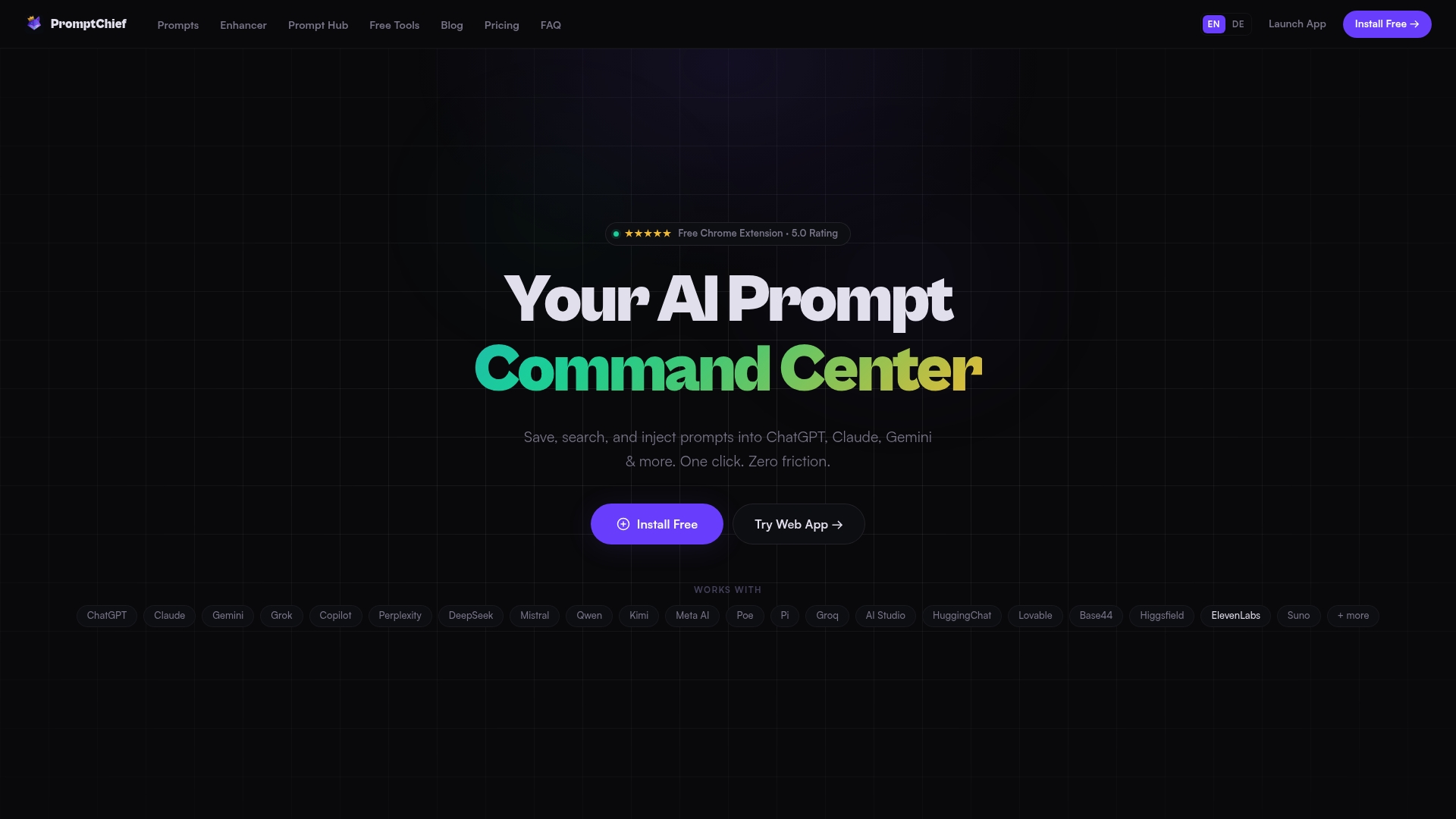
It also maps directly onto what actually matters for teams adopting auto-insert: magic placeholders for variable-driven templates, multi-step prompt chains for complex tasks, and role-based team workspaces with auto-send controls you can restrict per template. Support spans 27+ AI platforms including ChatGPT, Claude, and Gemini, so you're not locked into one model's ecosystem.
- Fuzzy search across saved prompts so nothing gets buried
- Magic placeholders for goal, tone, and context variables
- Multi-step prompt chains for repeatable multi-part tasks
- Team workspaces with shared libraries and access control
- Auto-send toggles you control per template, not globally
If you're ready to move past copy-pasting and into a system built for it, start with Promptchief's prompt management platform and set up your first template today.
Sources
- Effective prompts (MIT Sloan edTech)
- Prompt engineering (Stanford UIT)
- arXiv:2211.01910 (automated prompt methods — academic)
- How to stop copy-pasting prompts and start getting real results (Medium)
FAQ
What is a prompt example?
A prompt example is a saved instruction template, often with placeholders like [Topic] or [Tone], that you can reuse and adapt instead of writing a new instruction from scratch each time.
How do you generate AI prompts automatically?
Most tools generate prompts from a saved template filled in with your inputs, rather than inventing wording from nothing; some academic research explores fully algorithmic prompt search, but production tools favor human-written templates with variables.
How do I add a prompt to my chat window automatically?
Install a browser extension or prompt manager, save your template with a hotkey or button assigned to it, then trigger that shortcut inside the chat input to inject the text directly.
Can auto insert prompts work with automation platforms like Power Automate?
Yes, through API or plugin integrations that programmatically inject saved prompt text into a target field, following the same template-and-placeholder pattern used in browser-based tools like Promptchief.
Is auto-send safe to leave on by default?
No. Disable auto-send by default and only enable it for templates you've thoroughly tested, since an untested template can send incomplete or incorrect text before you catch the mistake.